
Exit Revive allows you to create targeted popups based on user behavior and page context. In many cases, you may want a message to appear only on a specific page—for example, a discount offer on the pricing page, or a contact prompt on the blog.
This guide will show you how to configure Exit Revive to display a message only when a visitor is viewing a specific page on your WordPress site. This ensures your messages are shown at the right place, to the right audience, without disrupting the rest of the site.
Here’s how to create add condtions
-
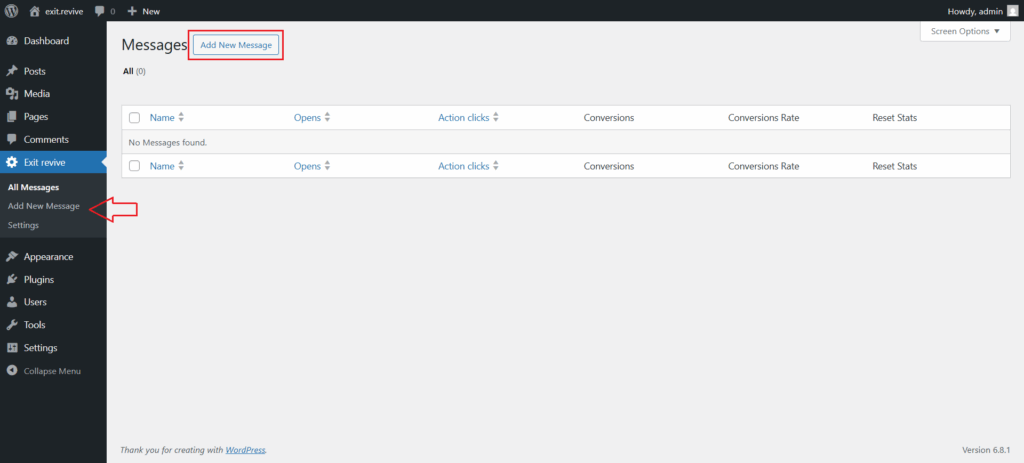
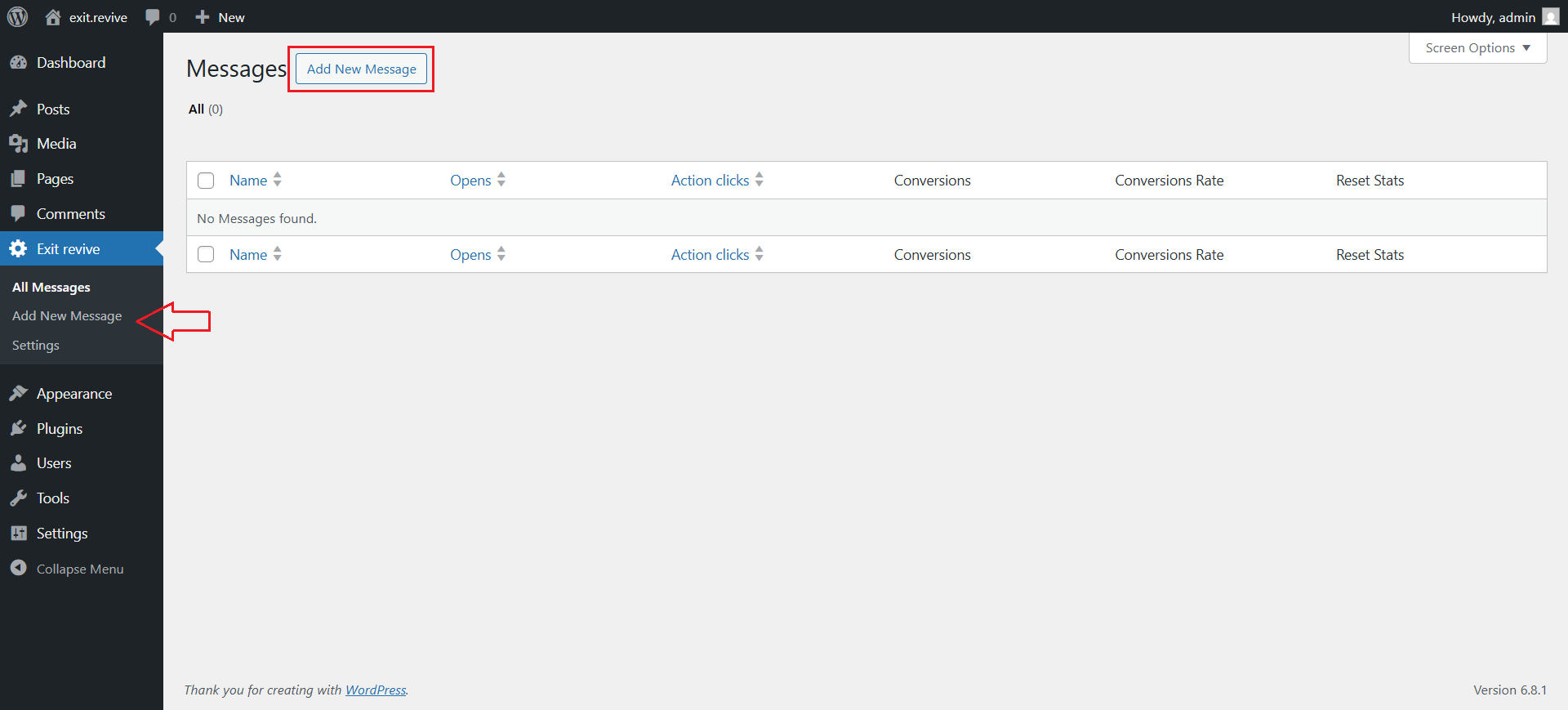
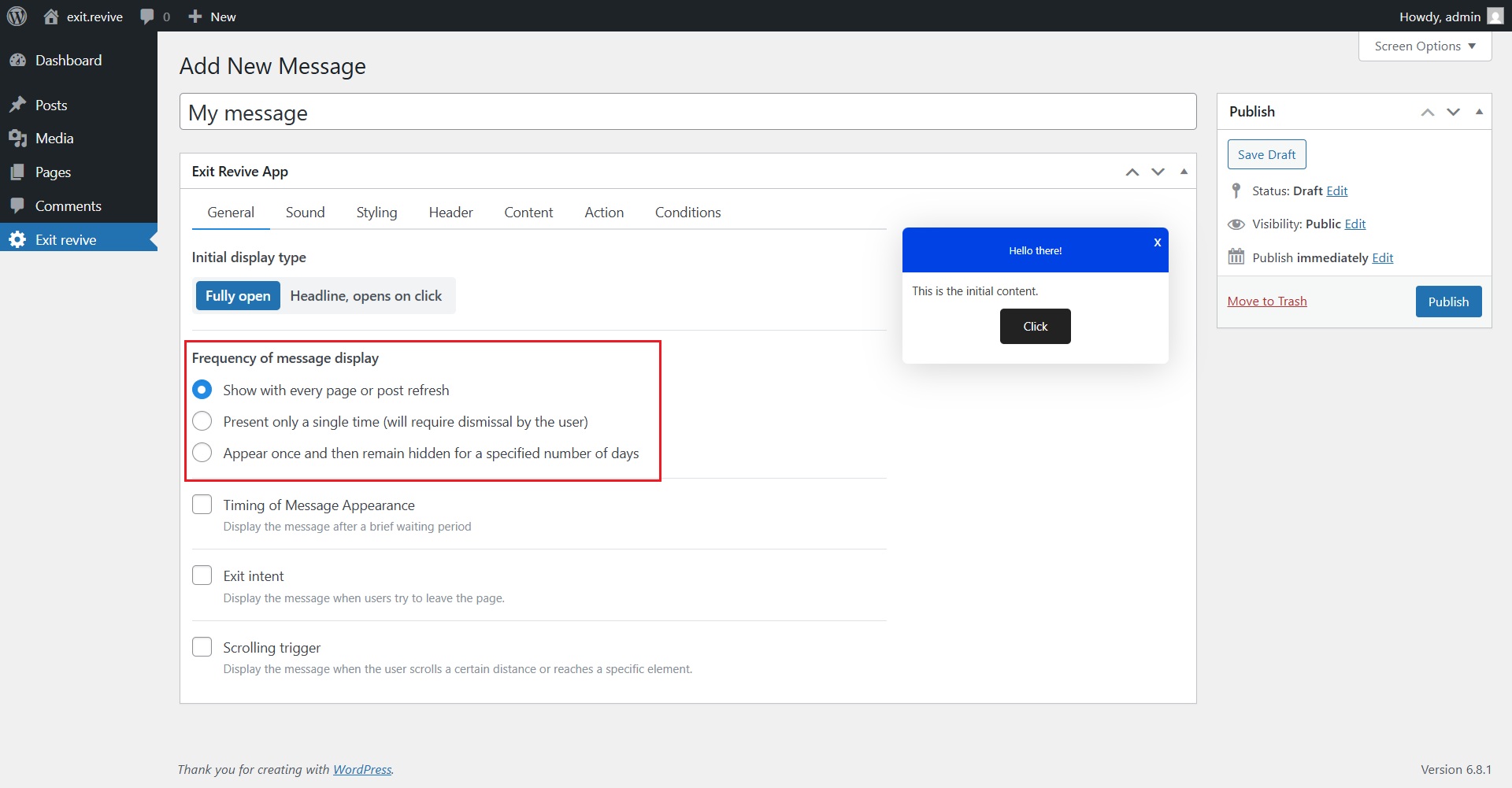
Head over to your WordPress dashboard > Exit Revive > Add new message
-
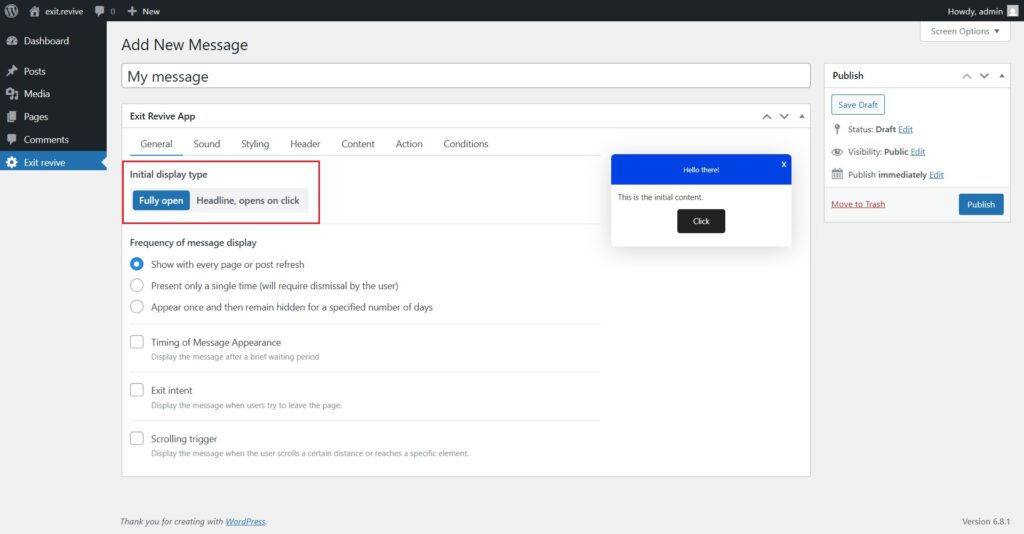
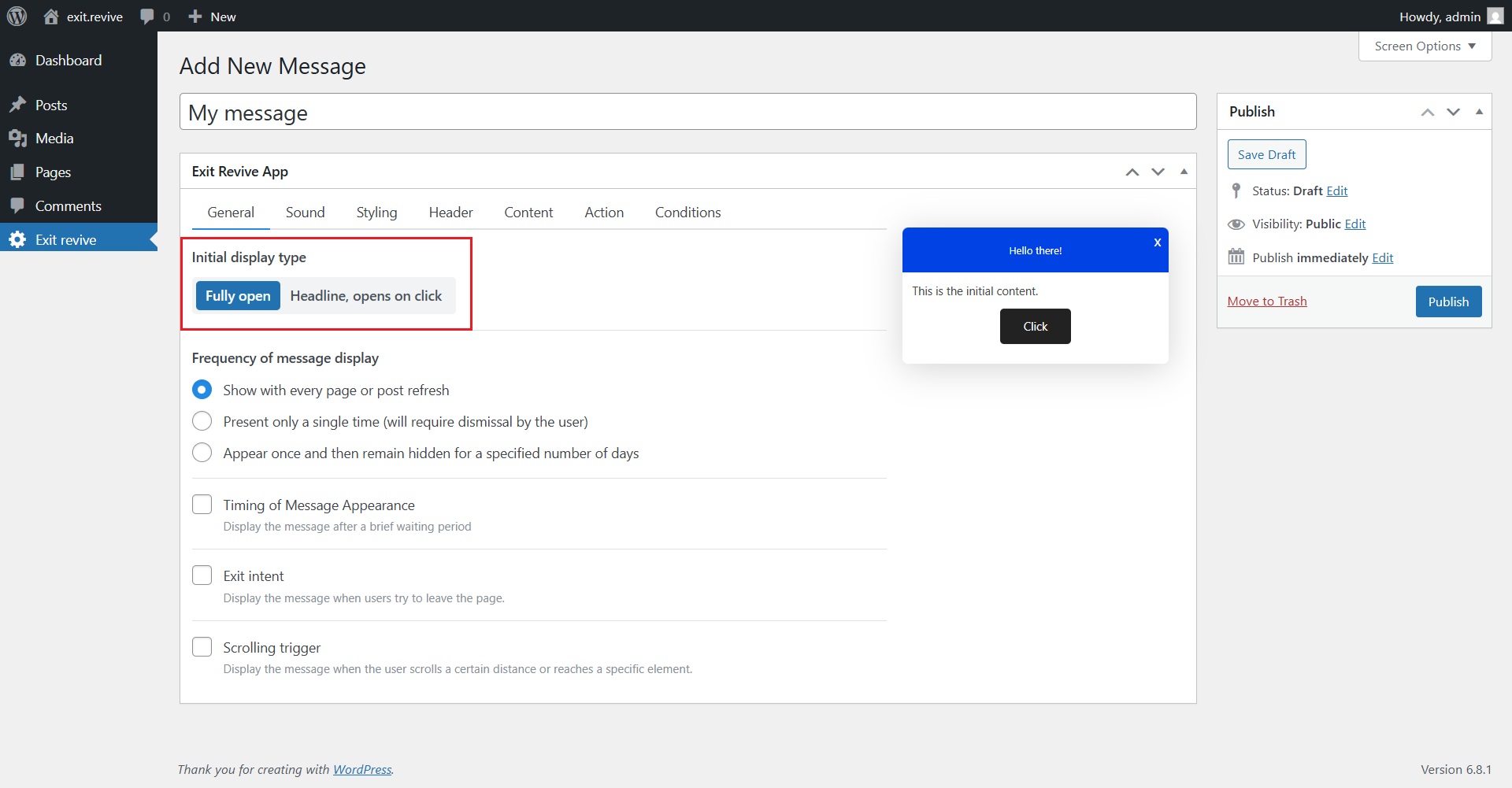
Add a name for your message at the top (e.g., “My message”) for internal reference and Choose Initial Display Type. Under “Initial display type”, select either:
- Fully open – message appears expanded automatically
- Headline, opens on click – only a headline shows until clicked
-
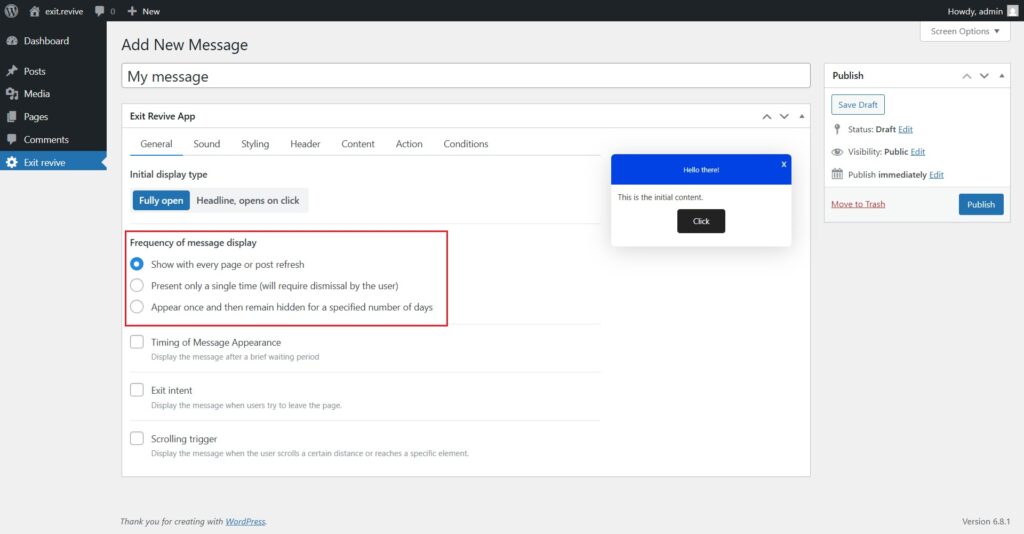
Select Frequency of Message Display
Choose how often the message should appear:
- Every page refresh
- Only once
- Once, then hidden for X days
-
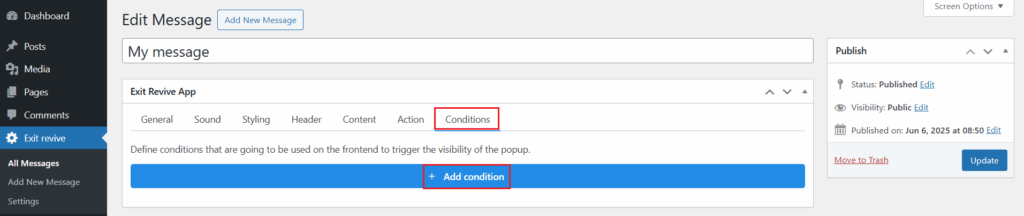
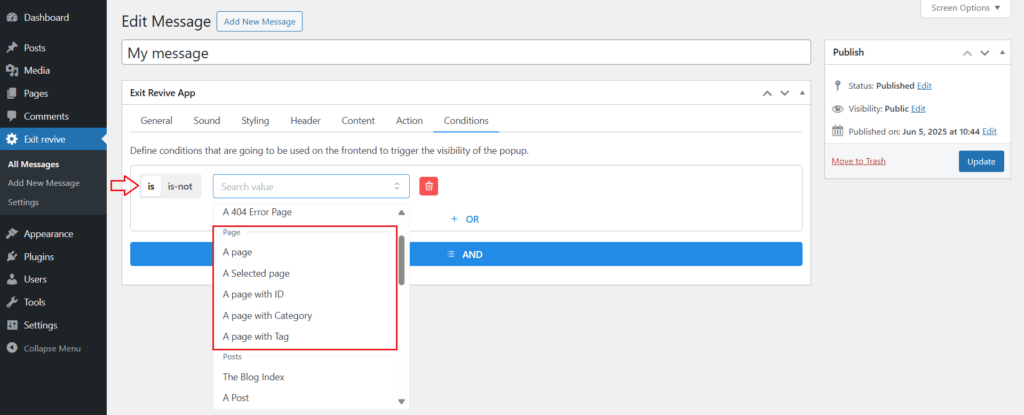
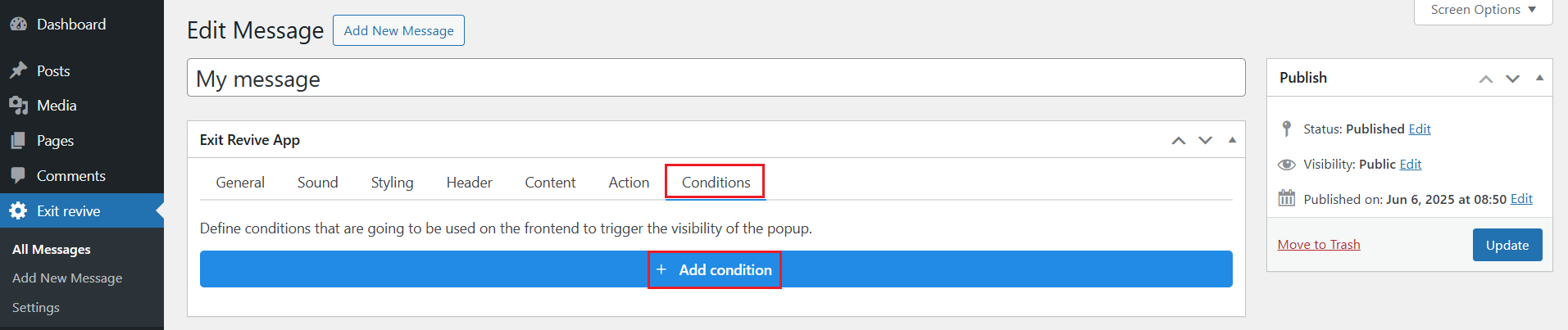
After setting up your message, go to the Conditions tab and click on Add condition
-
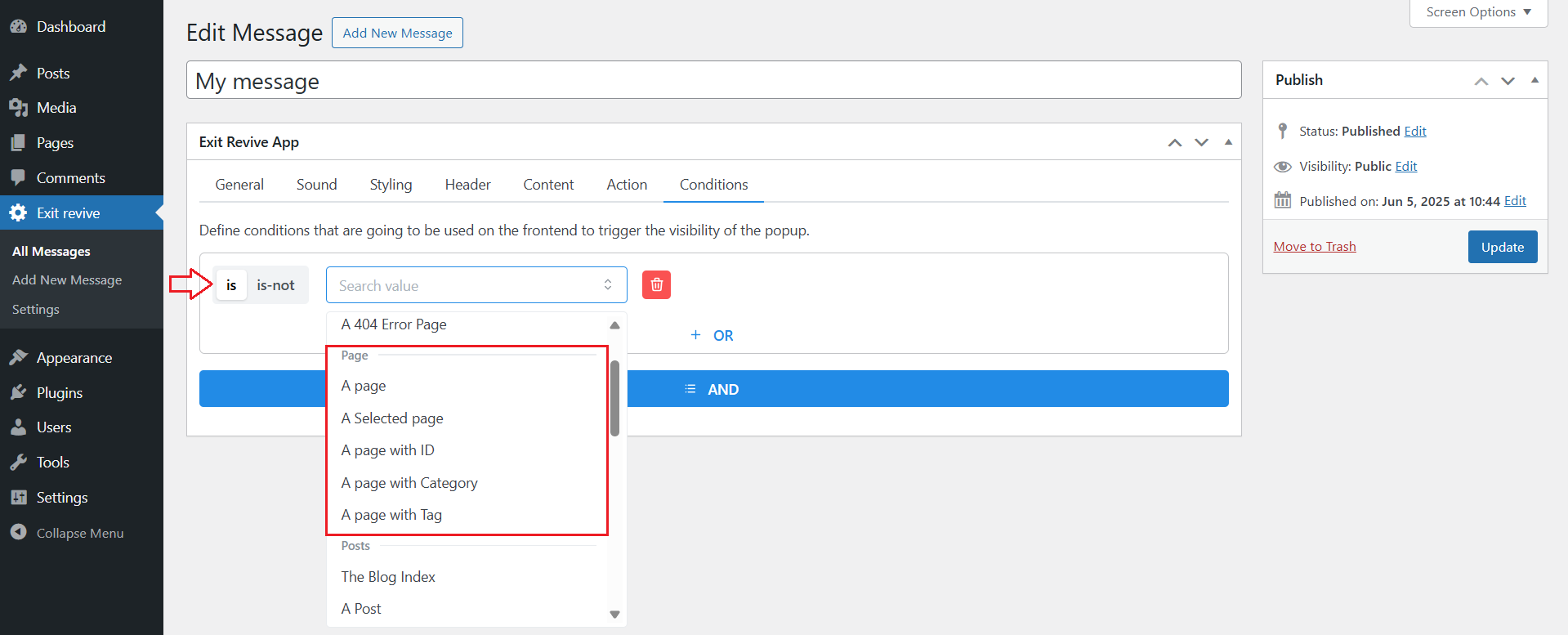
Here you can choose
is(oris-notif you want to exclude the page).After that in the value dropdown (where it says “Search value“), scroll and choose one of the following options:
- A page – targets all pages.
- A Selected page – lets you select a specific page from a list.
- A page with ID – use this if you know the page ID.
- A page with Tag/Category – for targeting groups of pages.
-
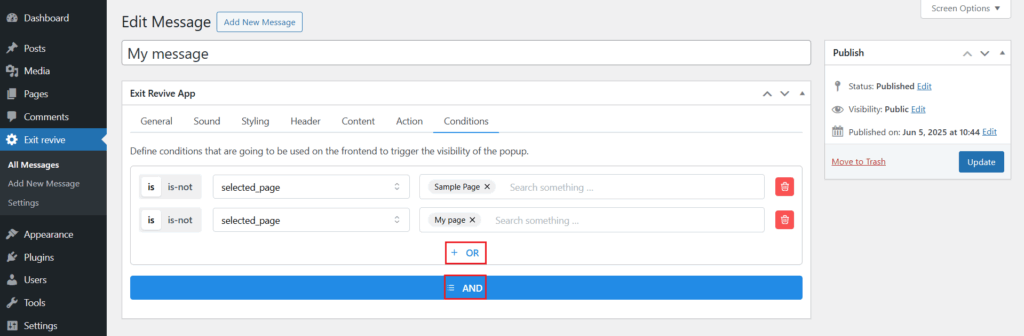
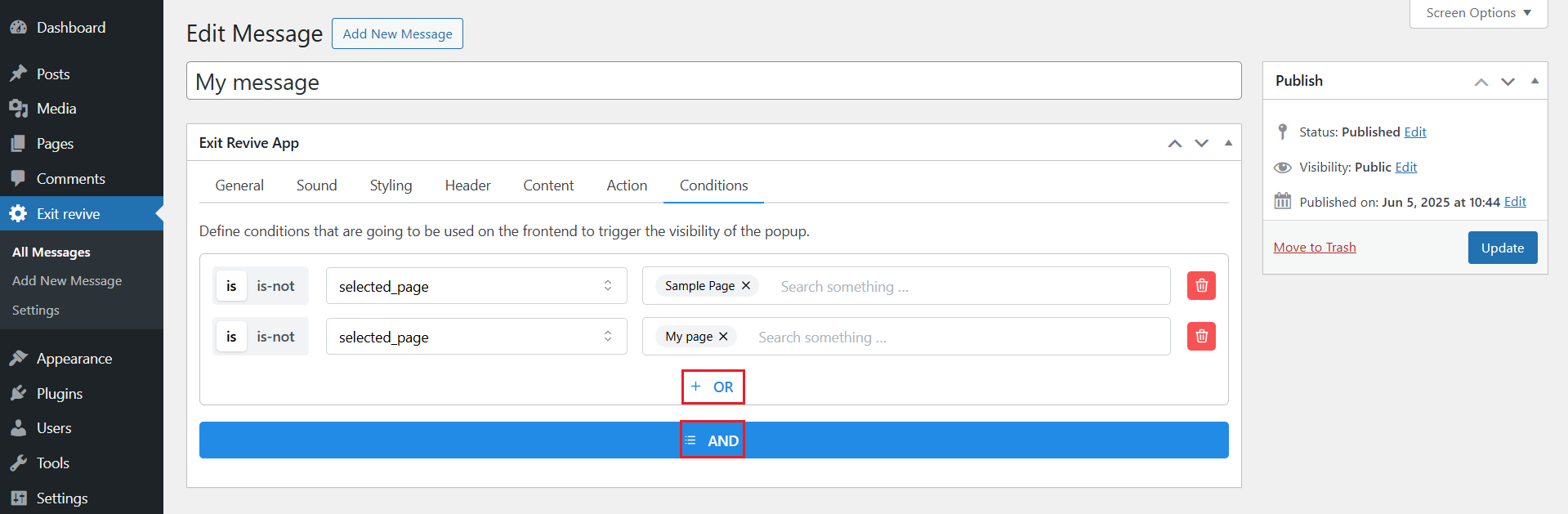
You can also set multiple conditions for your message using logical AND / OR rules:
- AND means the popup will appear only if all the listed conditions are true.
- OR means the popup will appear if any of the listed conditions are true.
-
Once you’ve set the condition, click Update or Publish on the right side.
That’s it! Your message will now appear exactly when a visitor reaches a specific page — a smart, targeted way to grab attention at just the right moment, without interrupting the rest of their experience.