
Exit Revive lets you create targeted popups based on user behavior and page context. Sometimes, you may want your message to show only to logged-in users—like a special offer for your members—or just to visitors who aren’t logged in yet.
This guide will walk you through setting up Exit Revive to display messages specifically for logged-in or logged-out users on your WordPress site. That way, your popups reach the right audience at the right time, without interrupting anyone else’s experience.
Follow these steps to make a popup message display only to users who are logged in:
-
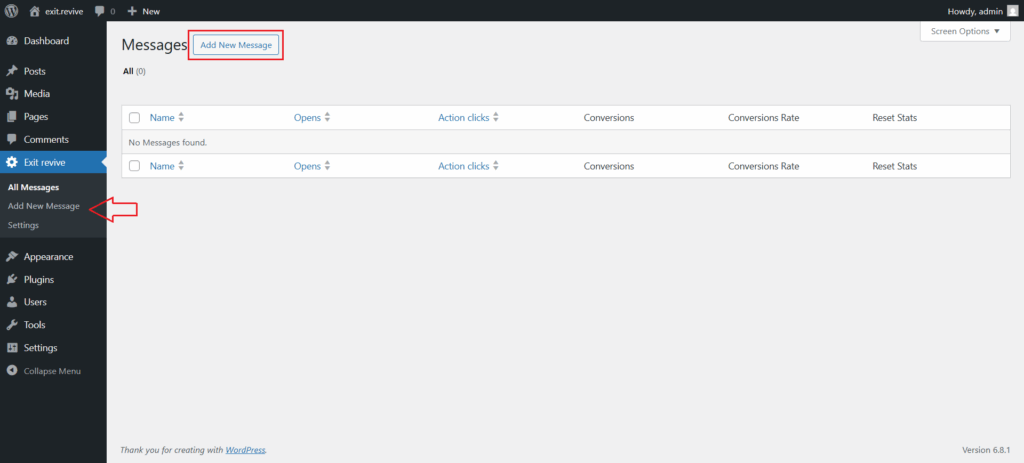
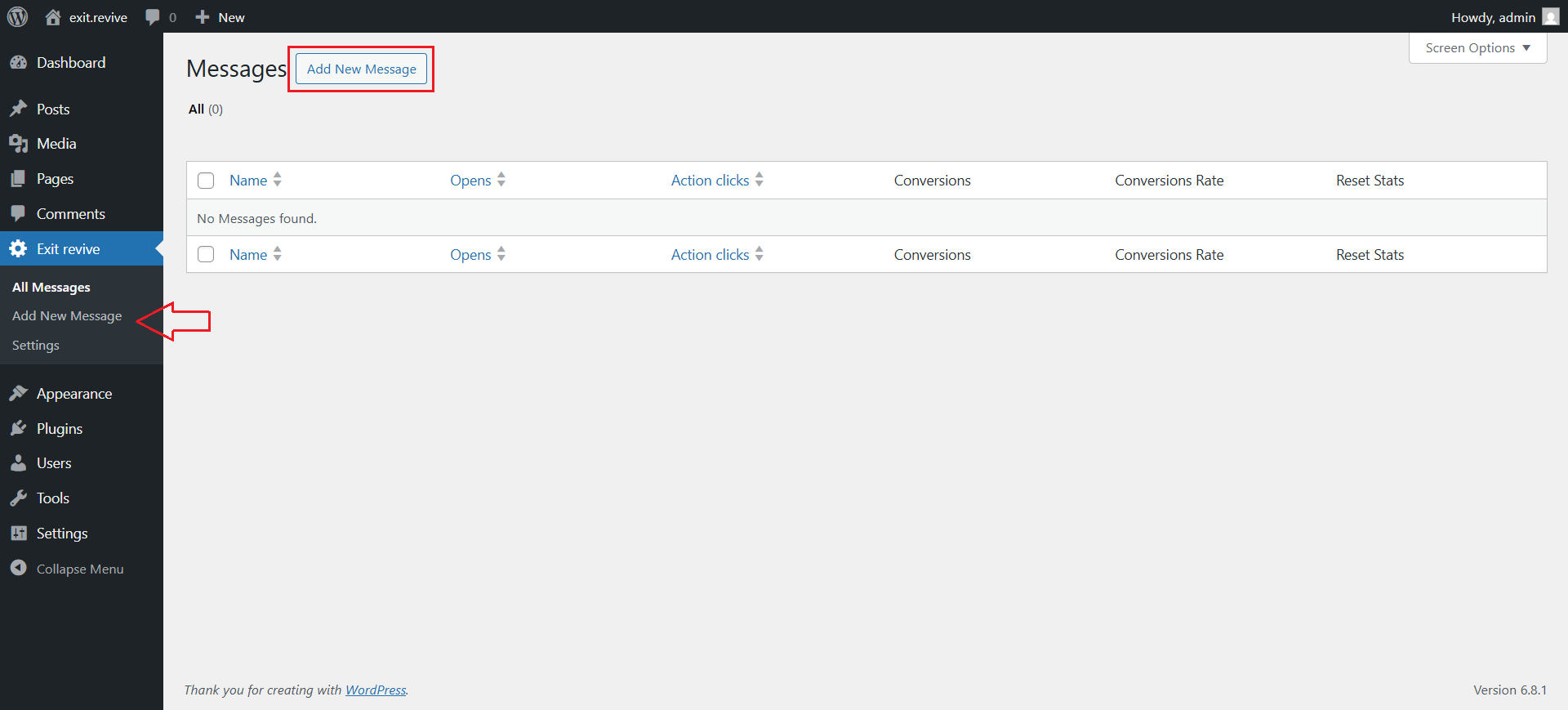
Head over to your WordPress dashboard > Exit Revive > Add new message
-
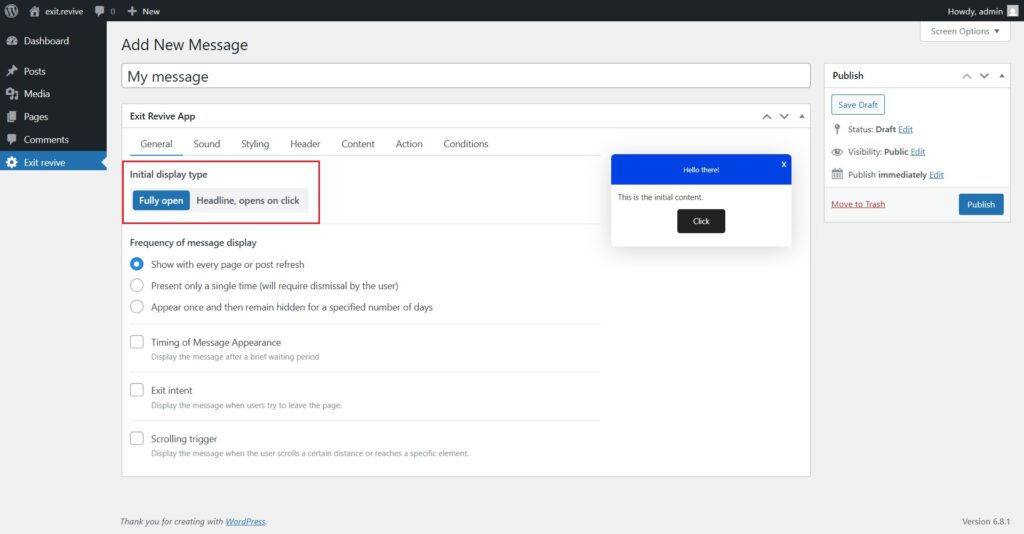
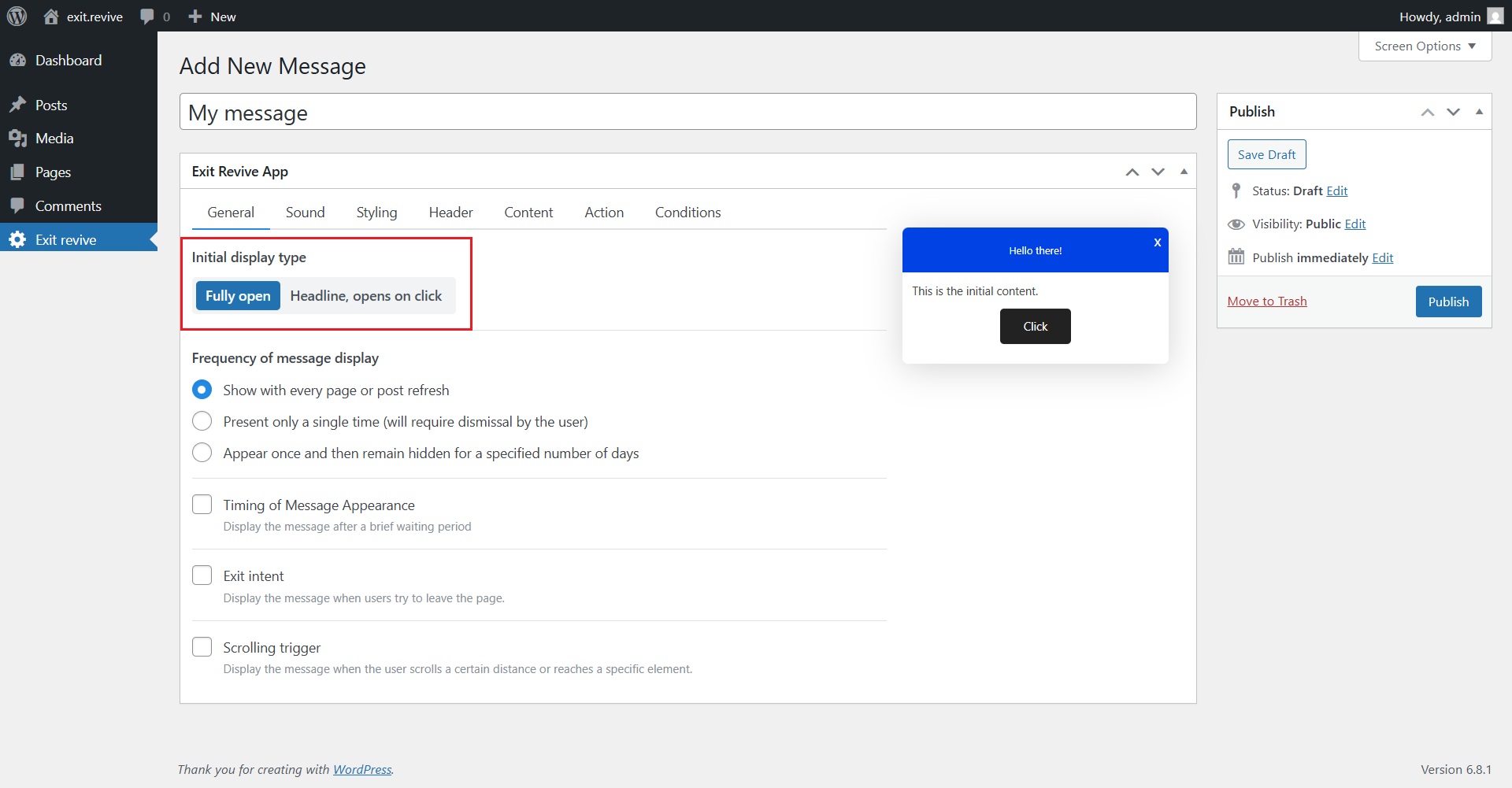
Add a name for your message at the top (e.g., “My message”) for internal reference and Choose Initial Display Type. Under “Initial display type”, select either:
- Fully open – message appears expanded automatically
- Headline, opens on click – only a headline shows until clicked
-
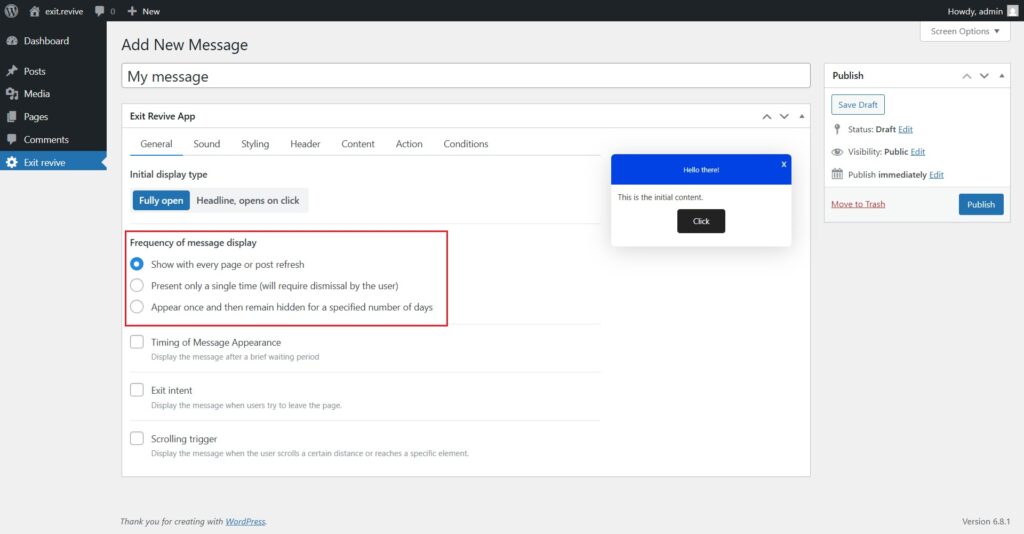
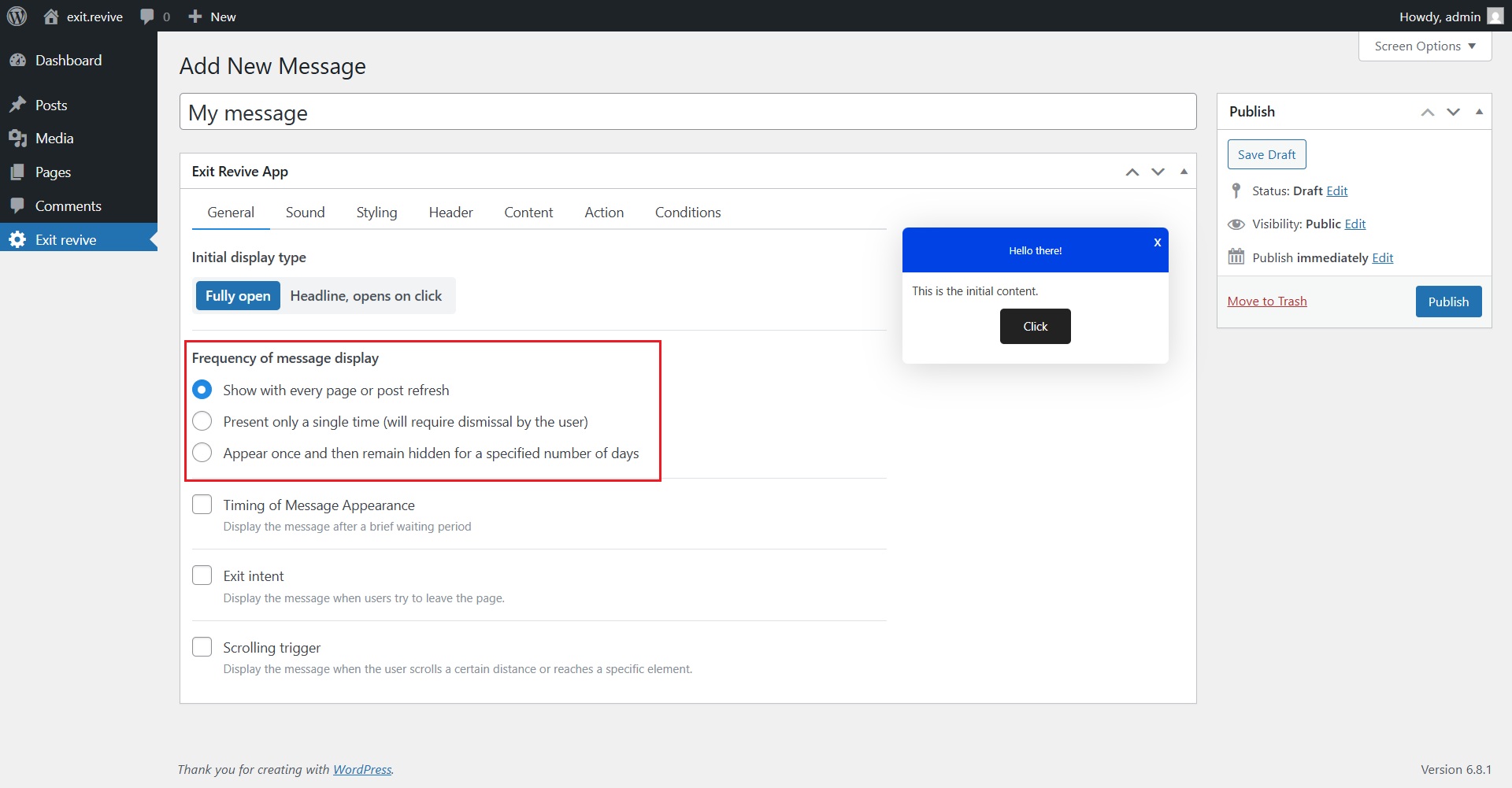
Select Frequency of Message Display
Choose how often the message should appear:
- Every page refresh
- Only once
- Once, then hidden for X days
-
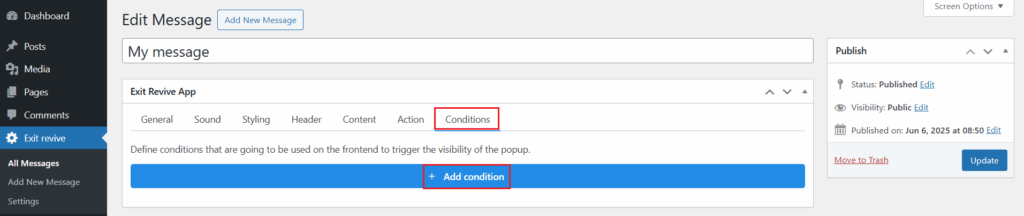
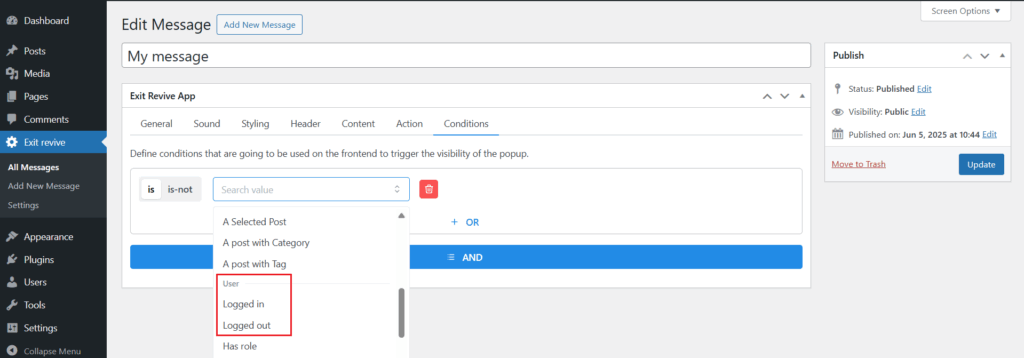
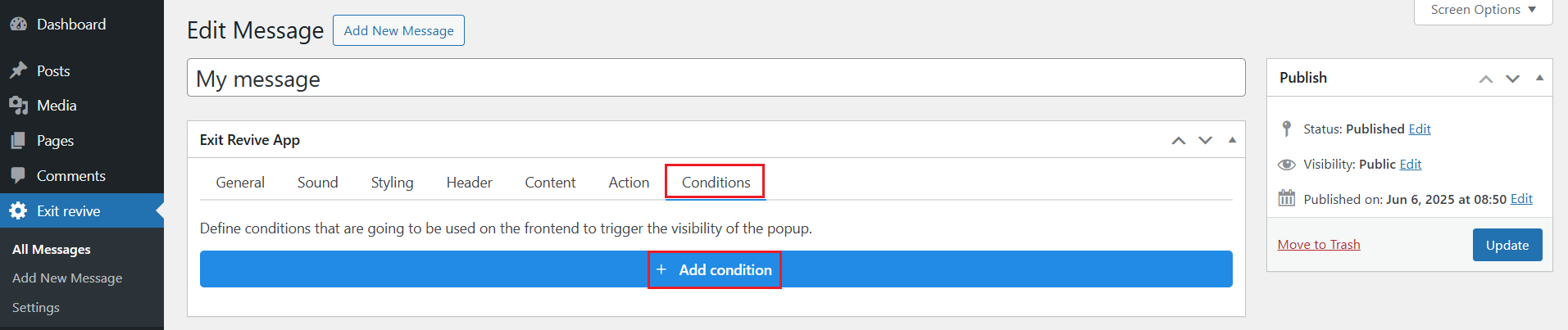
After setting up your message, go to the Conditions tab and click on Add condition.
-
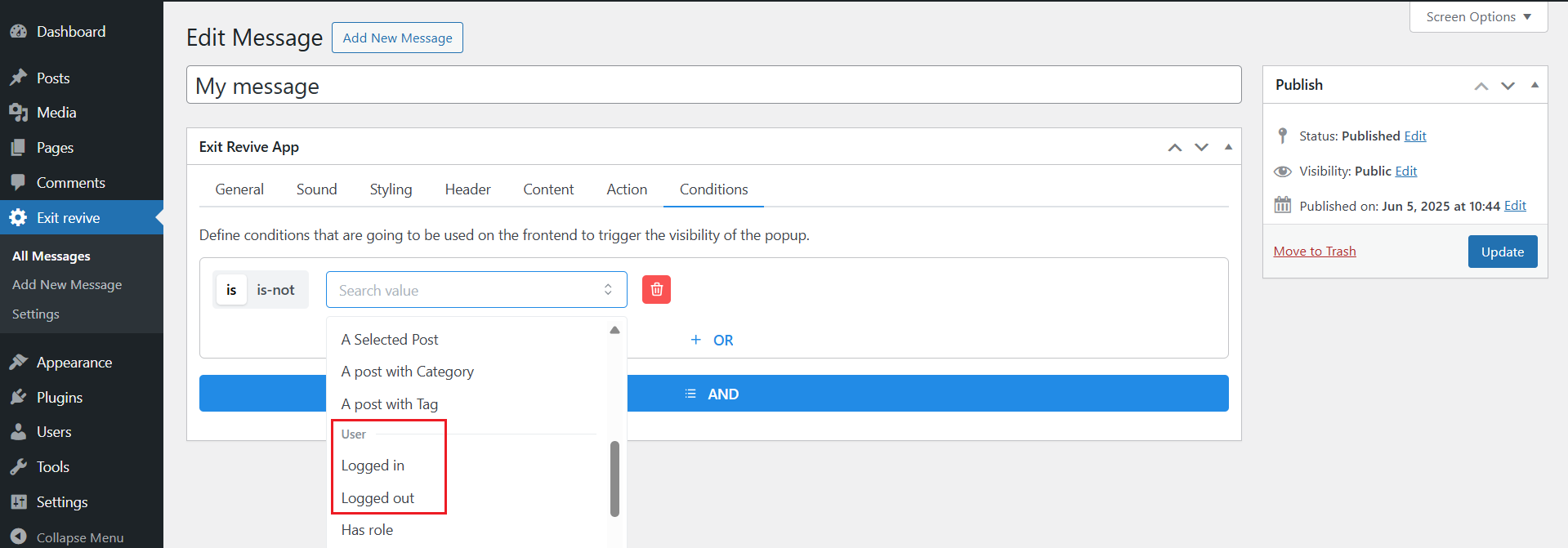
Here you can choose
is(oris-notif you want the user to be logged in/out).From the “Search value” dropdown, simply scroll through the options and pick who should see your message — either logged-in users or logged-out visitors.
-
Once you’ve set the condition, click Update or Publish on the right side.
That’s it! Your message will now show up just for logged-in users or logged-out visitors, so you can reach the right people at the right time