Make your Easy Digital Downloads (EDD) store more engaging by adding custom messages that appear when customers add items to their cart. Whether you want to confirm their action, suggest related downloads, or encourage them to complete their purchase, these messages help improve user experience and drive more sales.
Follow these steps to make a popup message display add to cart message:
-
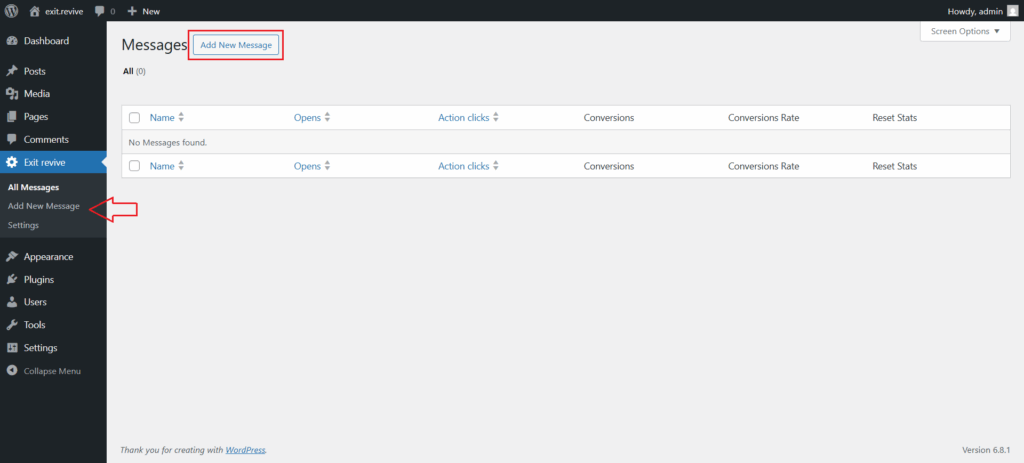
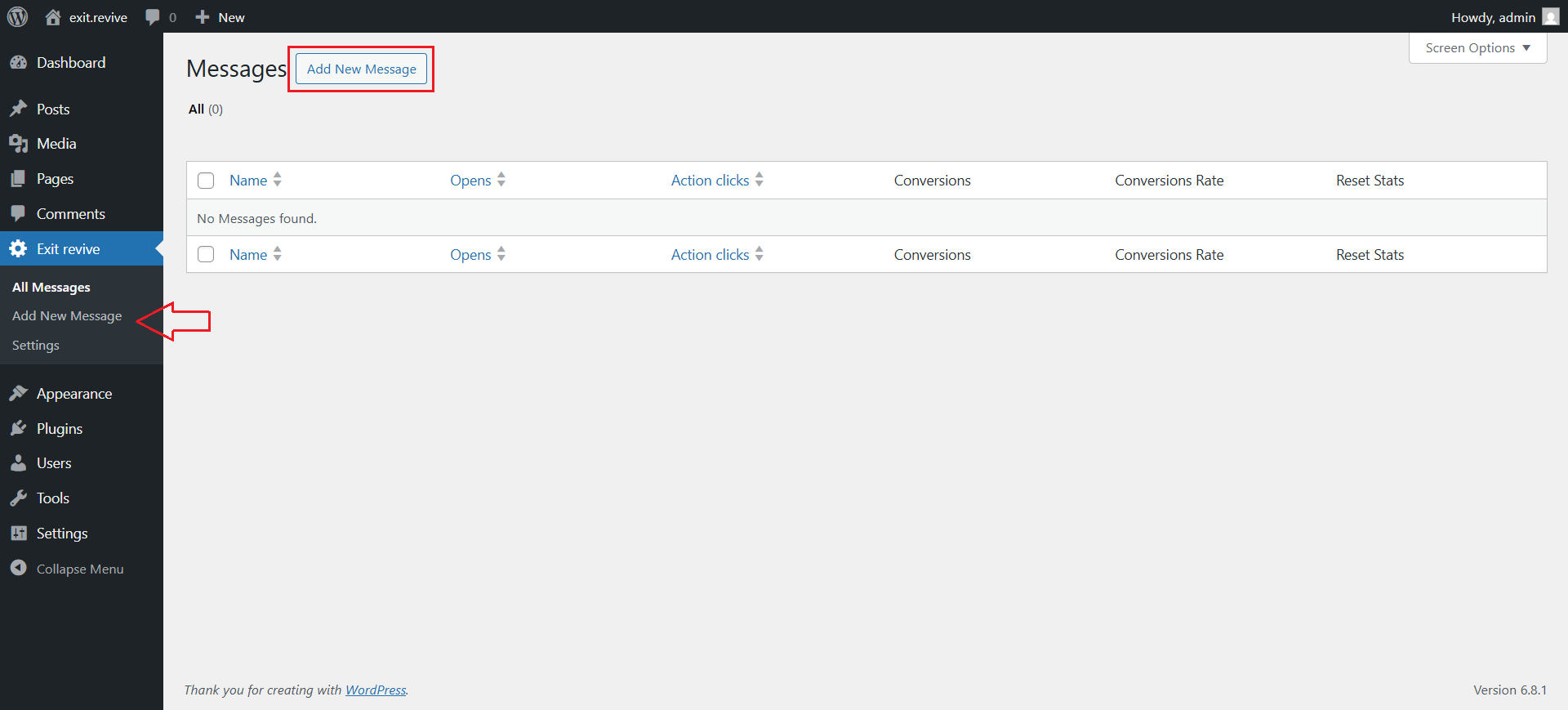
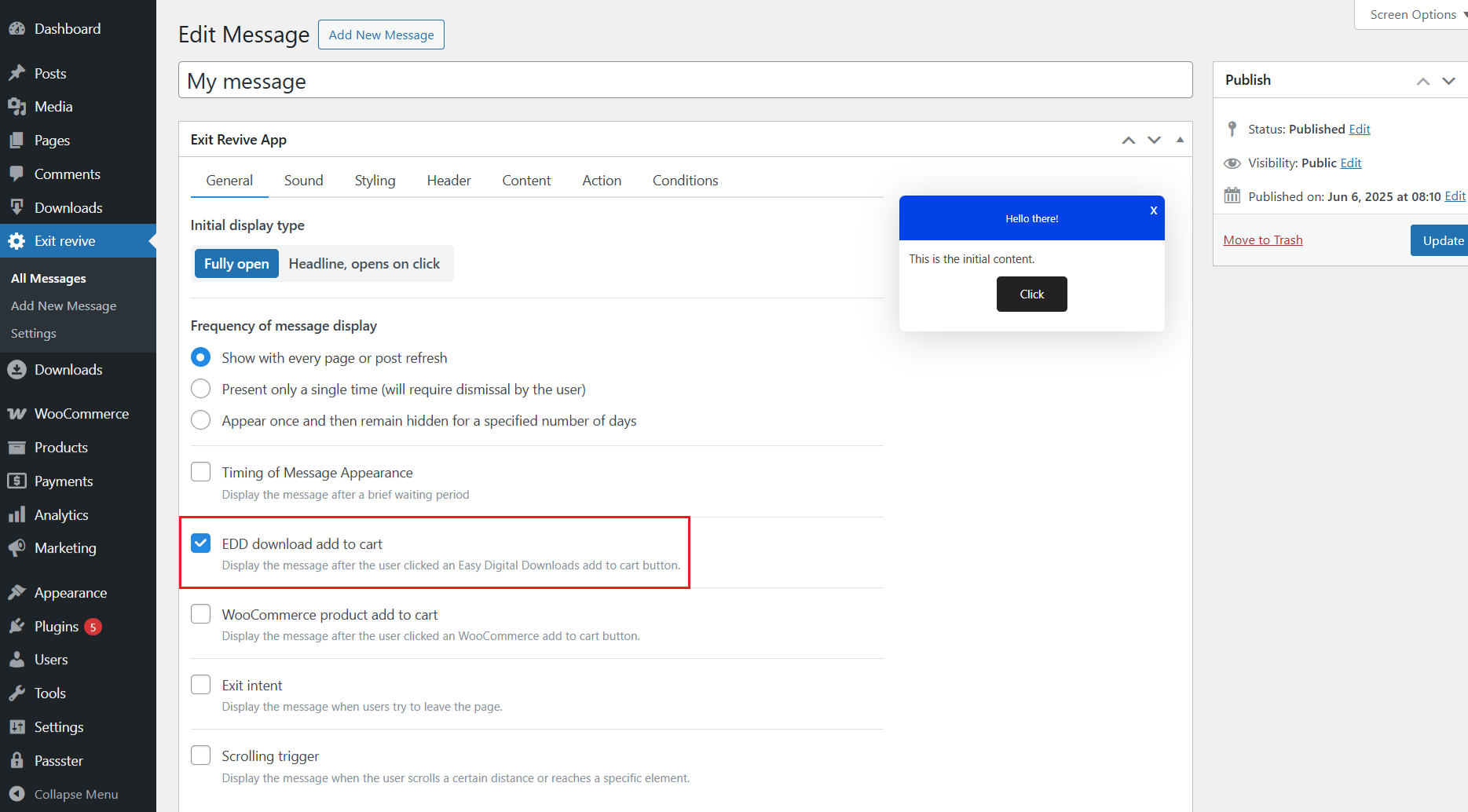
Head over to your WordPress dashboard > Exit Revive > Add new message
-
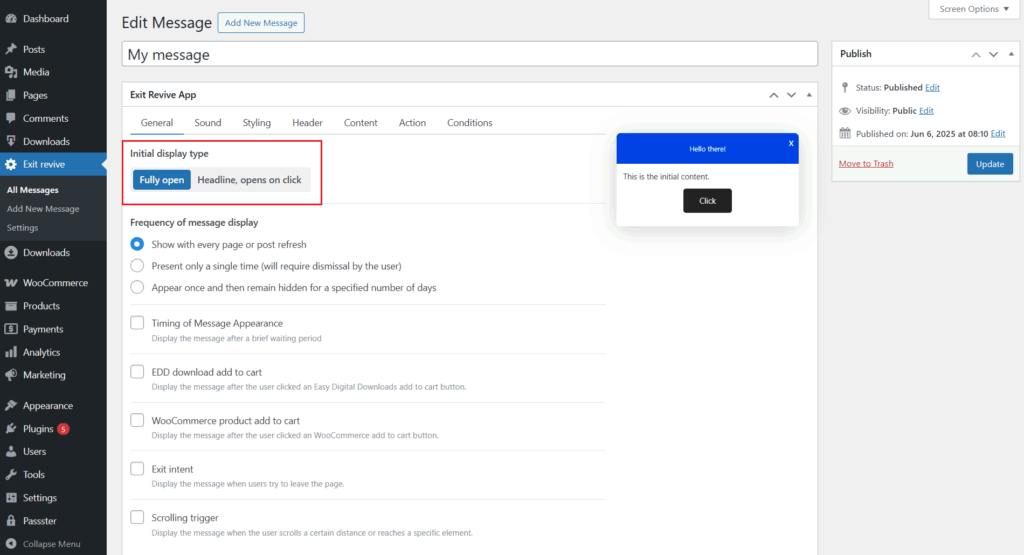
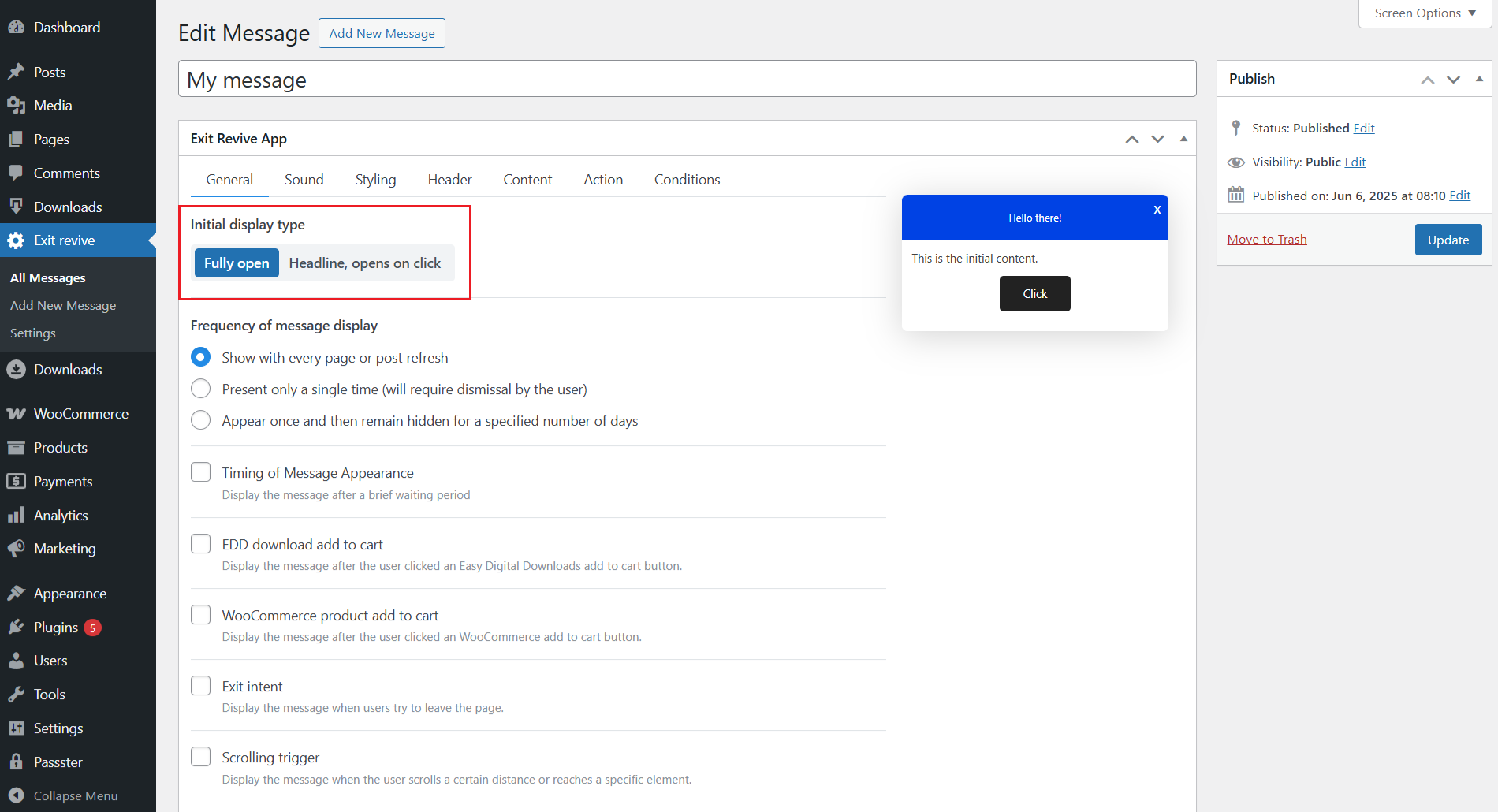
Add a name for your message at the top (e.g., “My message”) for internal reference and Choose Initial Display Type. Under “Initial display type”, select either:
- Fully open – message appears expanded automatically
- Headline, opens on click – only a headline shows until clicked
-
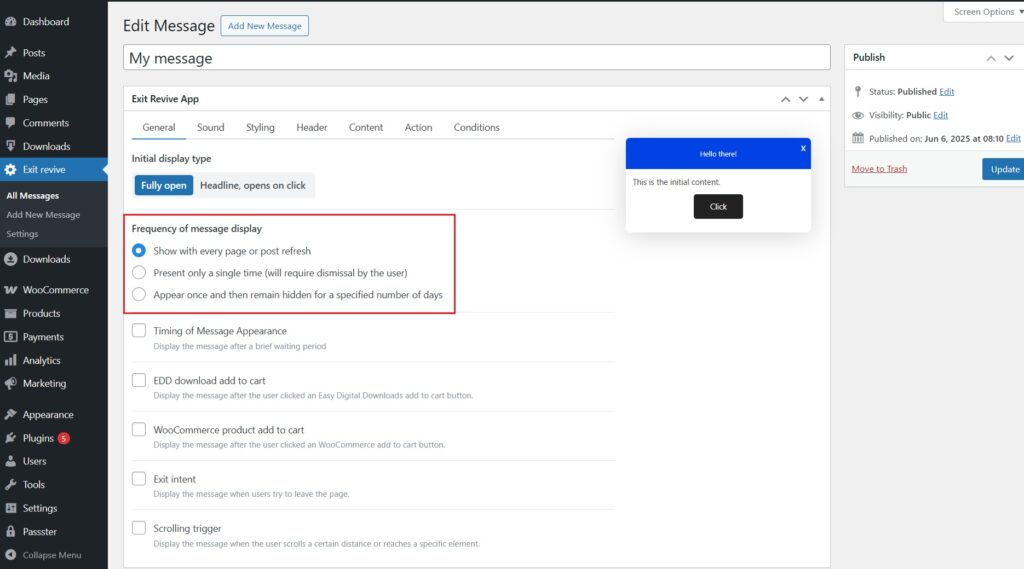
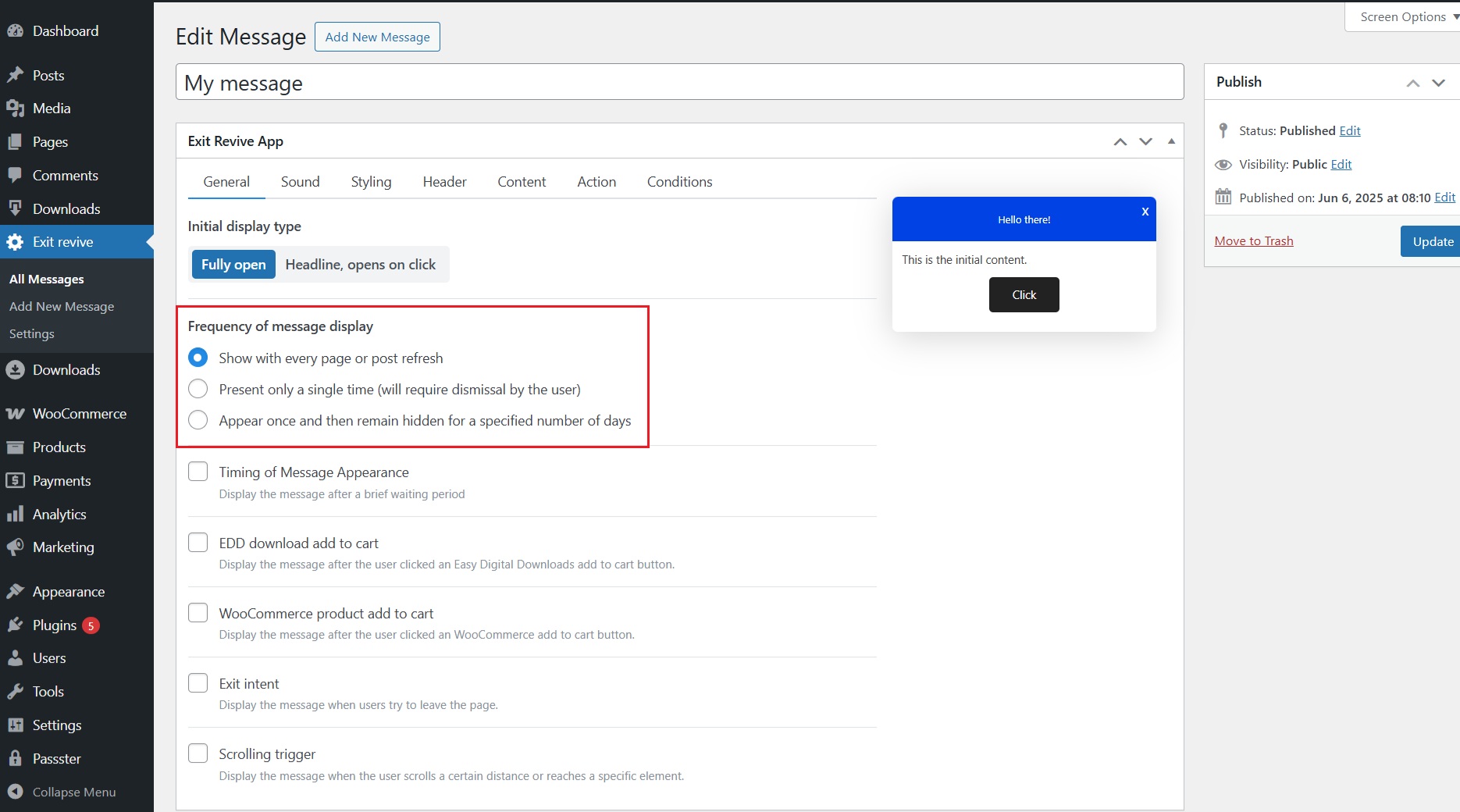
Select Frequency of Message Display
Choose how often the message should appear:
- Every page refresh
- Only once
- Once, then hidden for X days
-
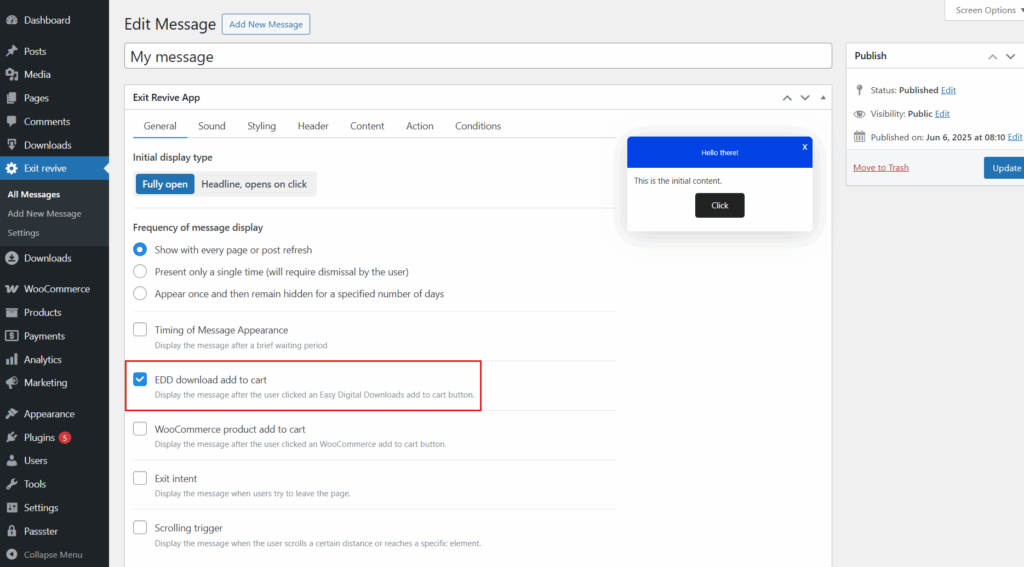
Enable EDD download add to cart
-
Customize Message Content
Use the tabs (Sound, Styling, Header, Content, etc.) to personalize your message. -
Once you’ve set the condition, click Update or Publish on the right side.
By adding personalized add-to-cart messages in your EDD store, you enhance the shopping experience and keep your customers informed and motivated to buy.