the Action tab is where you define what happens when a visitor interacts with a popup message. This is a key feature for turning passive notifications into meaningful actions, such as clicking a button to visit a link, complete a form, or trigger other behaviors.
Available Options:
-
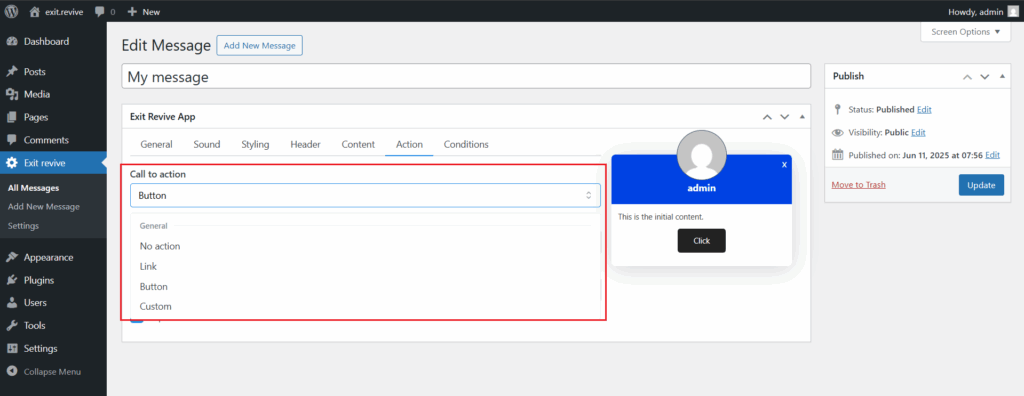
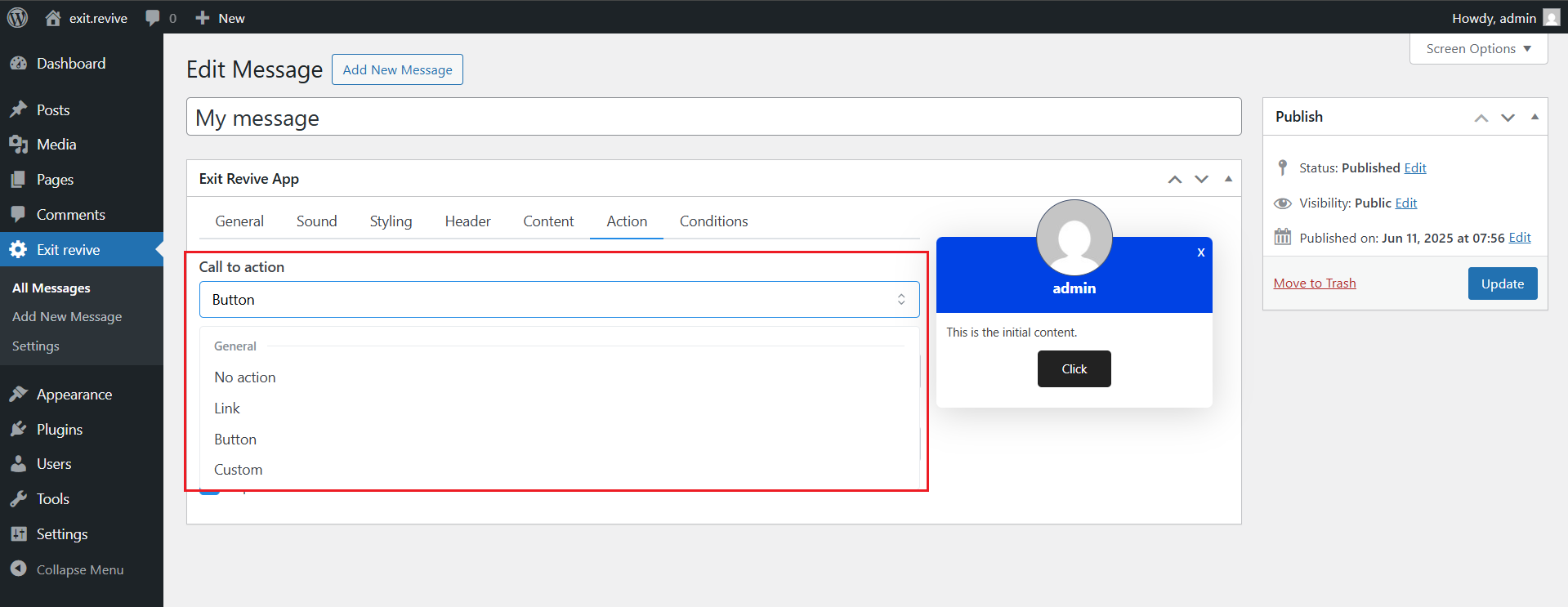
Call to action dropdown provides several interaction types. Each one controls how users can engage with the popup message.
- No action – no interaction is triggered when users view the popup. Use case: Informational messages where no user input or redirection is needed (e.g., “This page is being updated,” or “We’ll be back soon”).
- Link – Displays a link that users can click to visit a specified URL. Use case: Redirecting to another page, product, or external site.
- Button – Shows a customizable button that users can click. Use case: More visually prominent than a simple text link, good for call-to-action campaigns, promotions, or signup prompts.
- Custom – Offers full flexibility by allowing you to define a custom JavaScript action or advanced behavior.
-
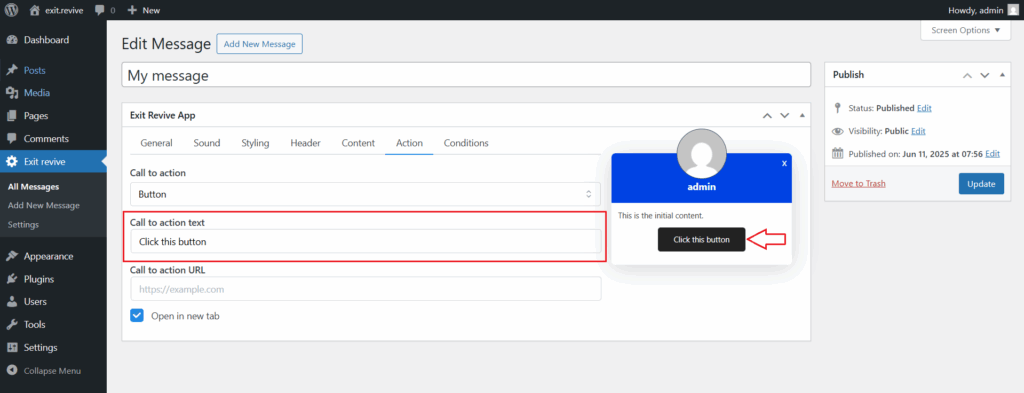
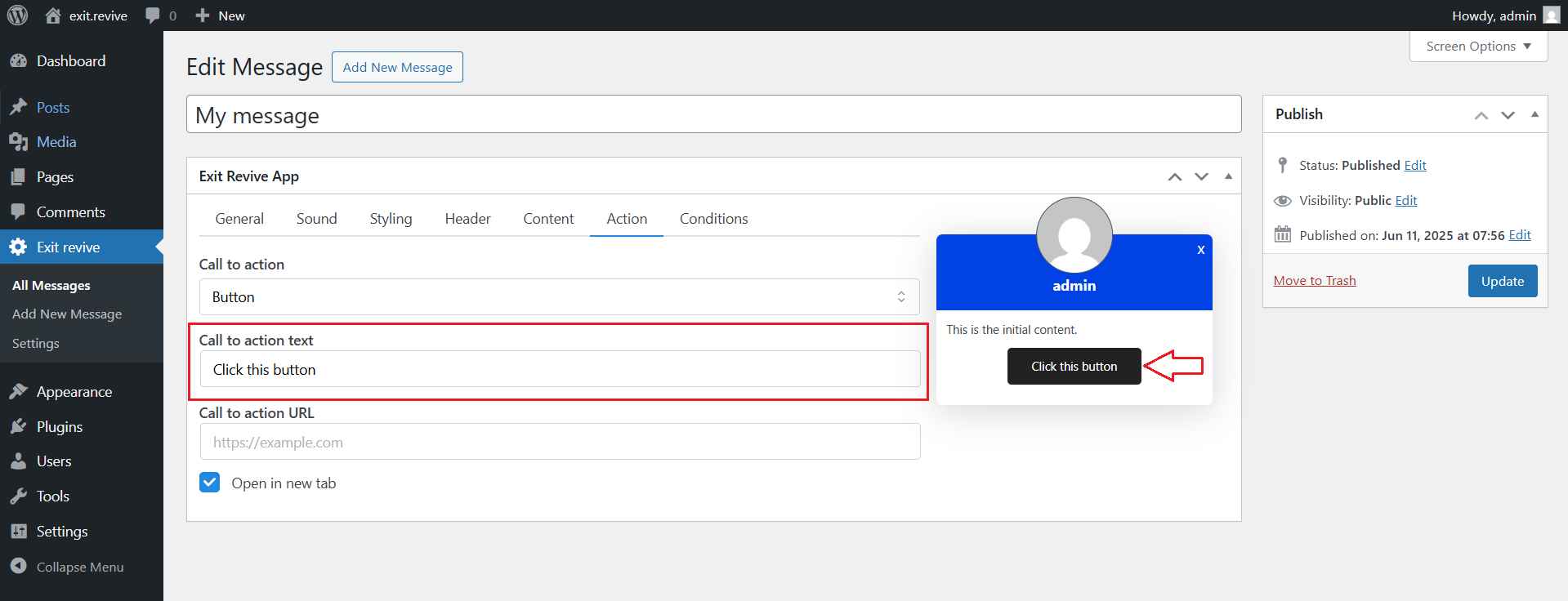
Call to action text field defines the visible label that users see and interact with — whether it appears as a button or a hyperlink, depending on the chosen action type.
-
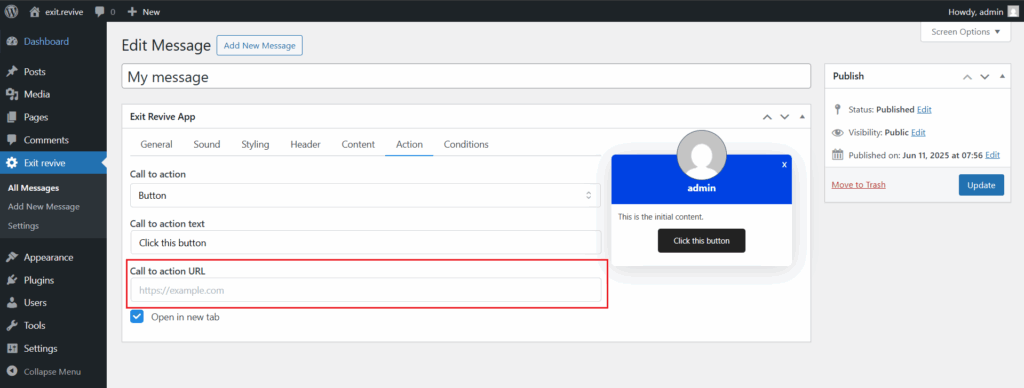
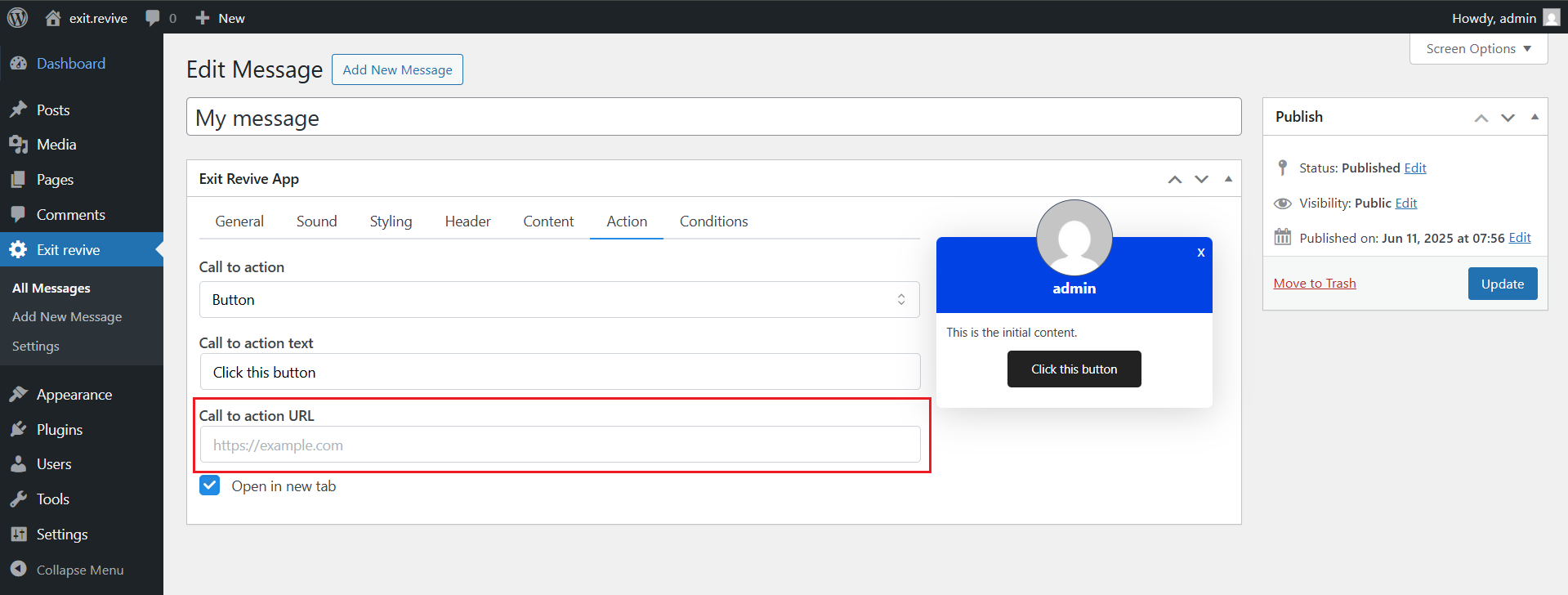
Call to action URL field defines the destination where the user is redirected after clicking the call-to-action element (button or link), depending on your selected action type.
-
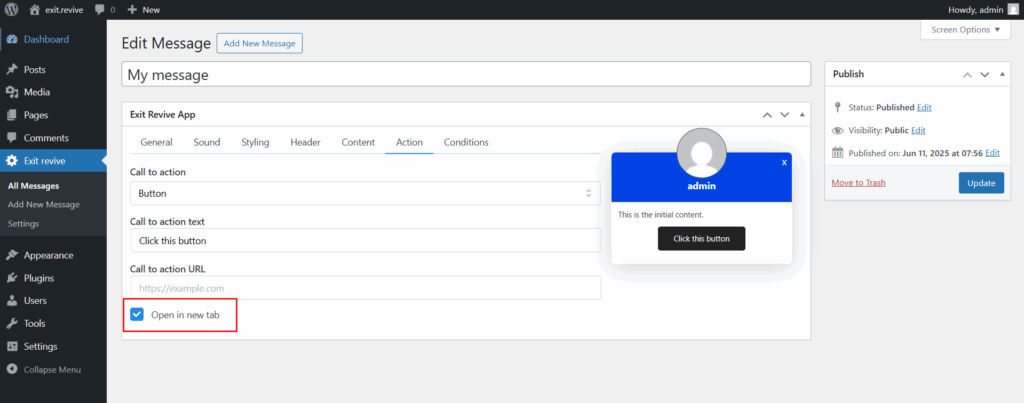
Open in new tab
- If checked, the CTA link will open in a new browser tab.
- If unchecked, the link will open in the same window.
The Action tab in Exit Revive App transforms a simple popup into an interactive tool that drives user engagement. By customizing the CTA type, button text, and redirect link, you can guide visitors toward specific goals like special offers, signup forms, or product pages