
You can control how analytics events are tracked and sent from Exit Revive. These settings give you flexibility over what data is collected and ensure you’re only tracking meaningful interactions. For example, you might want to avoid tracking admin users. Adjusting these options helps keep your analytics data clean, relevant, and legally compliant.
How to configure analytics settings:
-
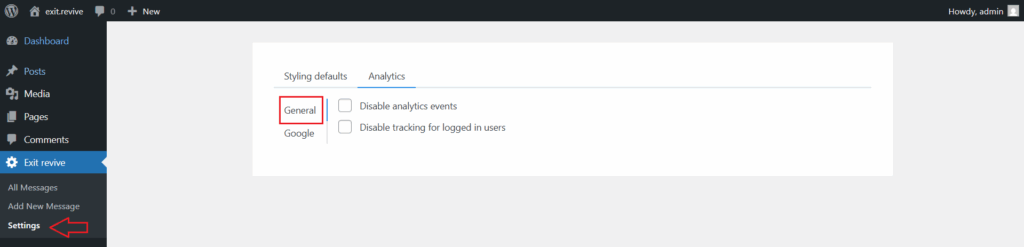
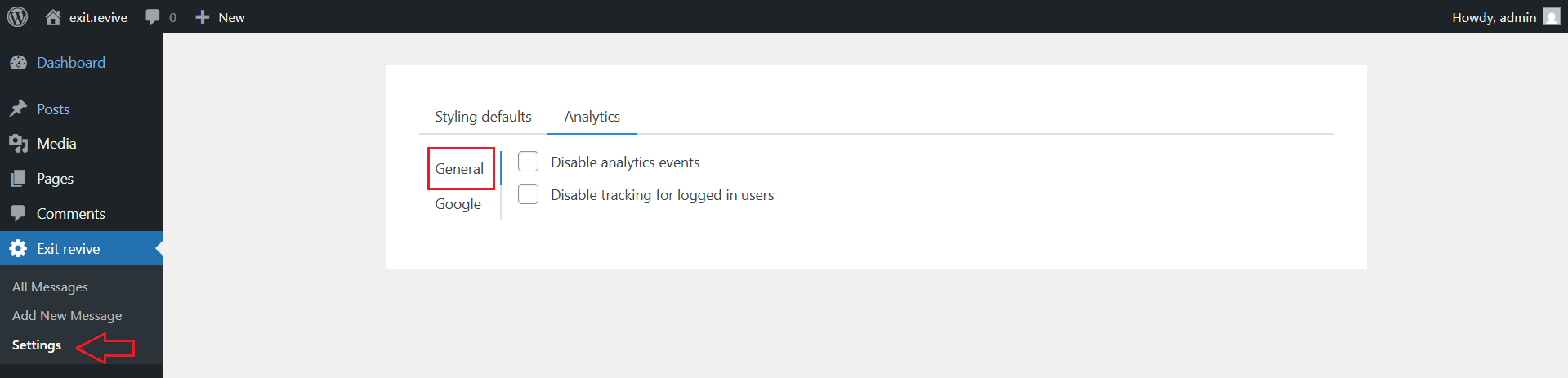
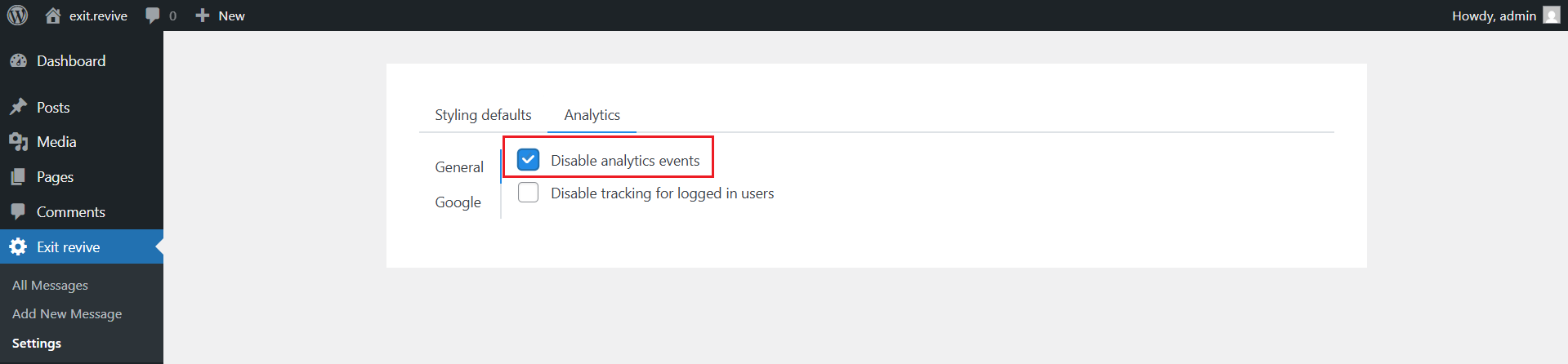
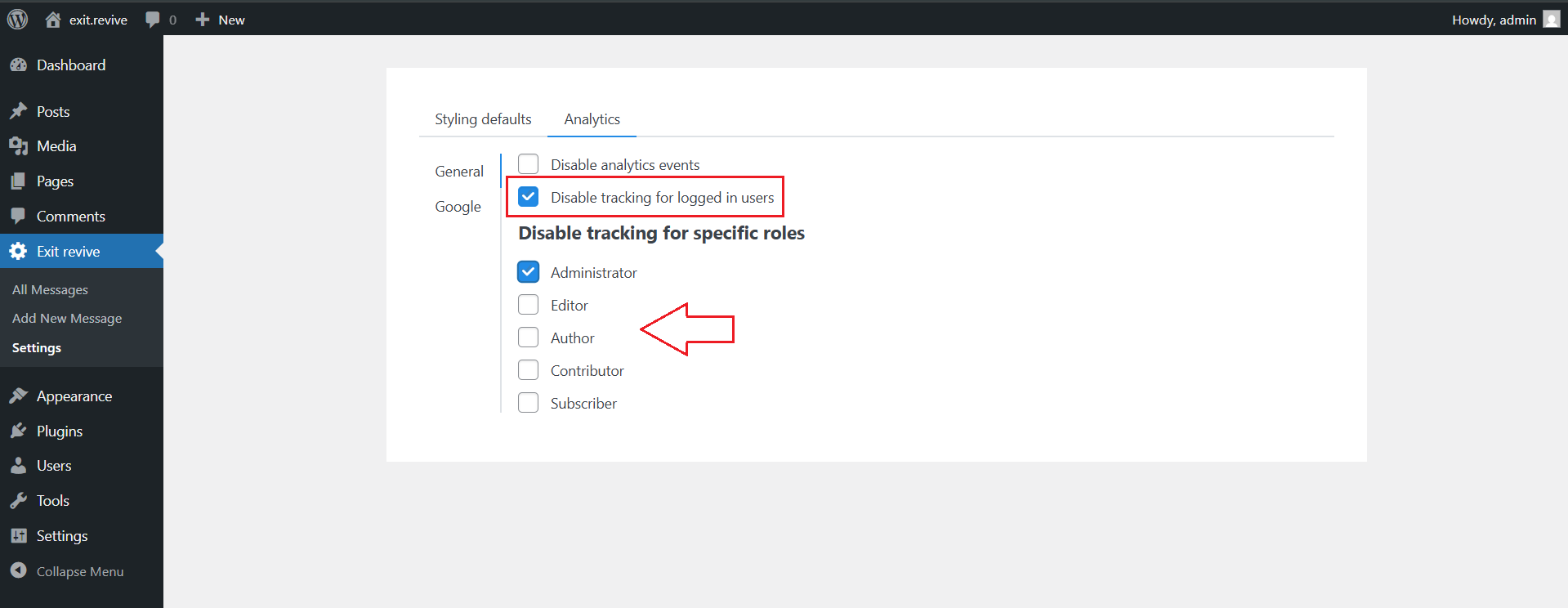
Head over to your WordPress dashboard > Exit Revive > Settings > Analytics > General
-
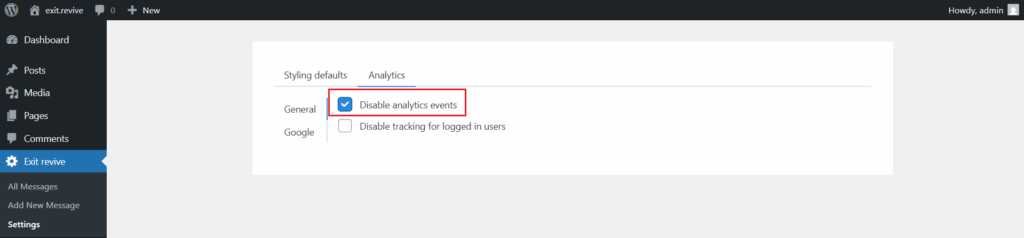
Disable analytics events
When enabled, Exit Revive will not send any events to Google Analytics. Use this option if you don’t want any tracking or if you’re using a custom tracking solution.
-
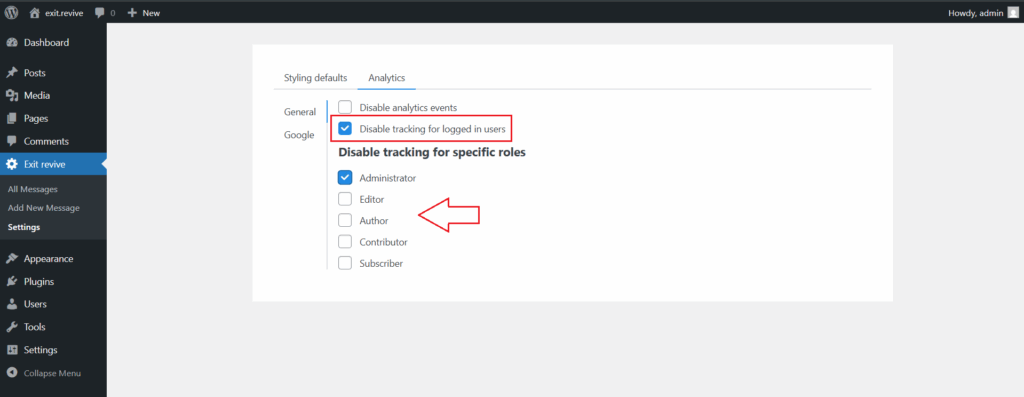
Disable tracking for logged in users
Enabling this will exclude logged-in users (such as admins or editors) from tracking. This ensures your analytics data reflects only real visitors, avoiding interference from internal activity.
These controls allow you to customize how Exit Revive sends data to Google Analytics, giving you control over what gets tracked. By adjusting these settings according to your audience type and privacy requirements, you can ensure that your analytics data remains both accurate and compliant. This helps you focus on real user behavior while respecting internal workflows.