
One of the features of the Exit Revive is the ability to display targeted messages based on user behavior, including how far they scroll down your page. Scroll timed messages help you engage visitors at just the right moment, offering content, promotions, or calls-to-action once a reader has shown genuine interest by scrolling through a portion of your content.
This guide will walk you through the steps required to create a scroll-timed message using the Exit Revive. Scroll-based triggers let you show messages at the right moment, boosting engagement without interrupting the user experience.
Here’s how to create a scroll-timed message
-
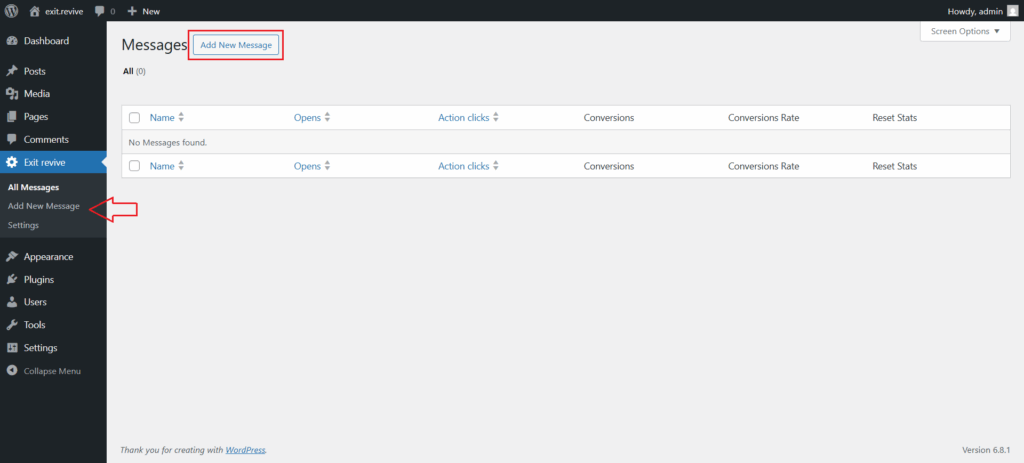
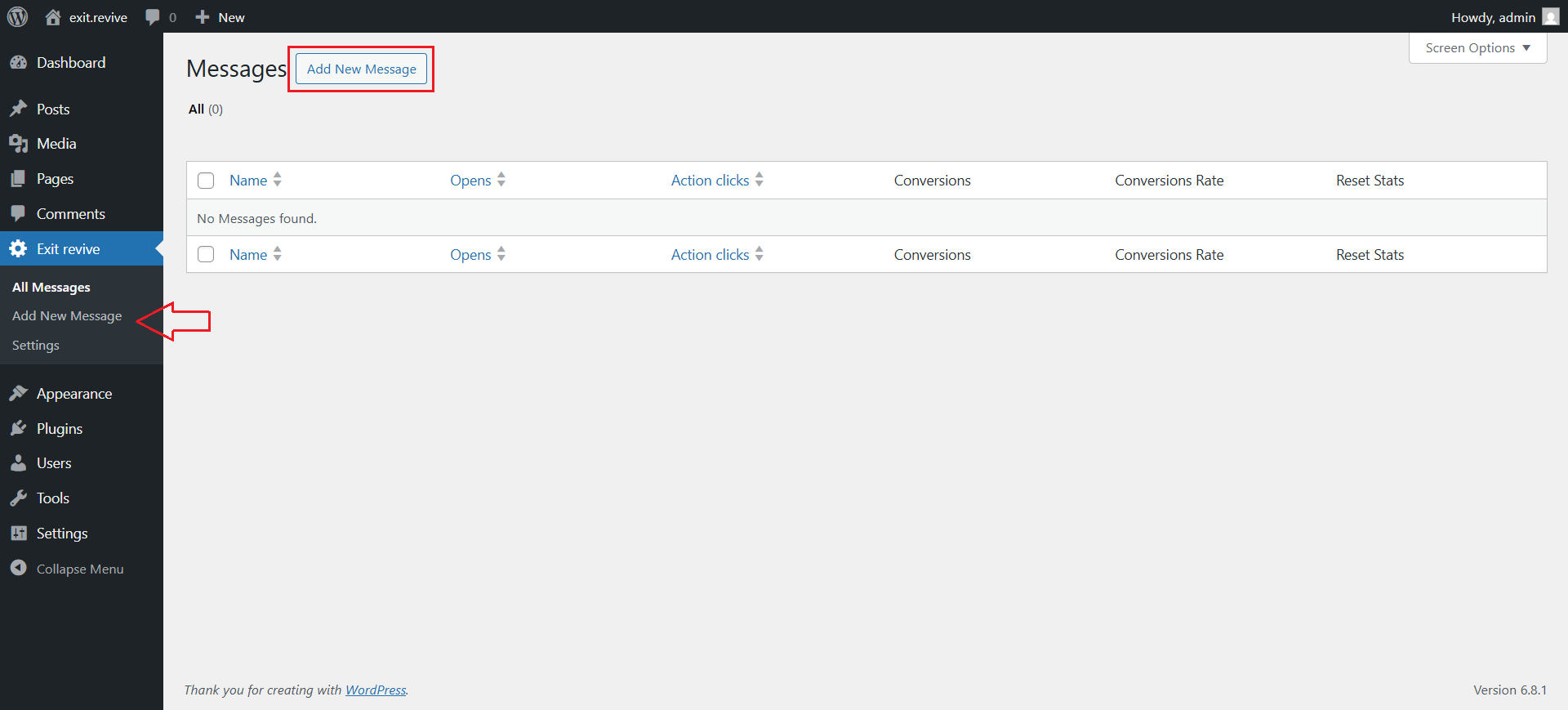
Head over to your WordPress dashboard > Exit Revive > Add new message
-
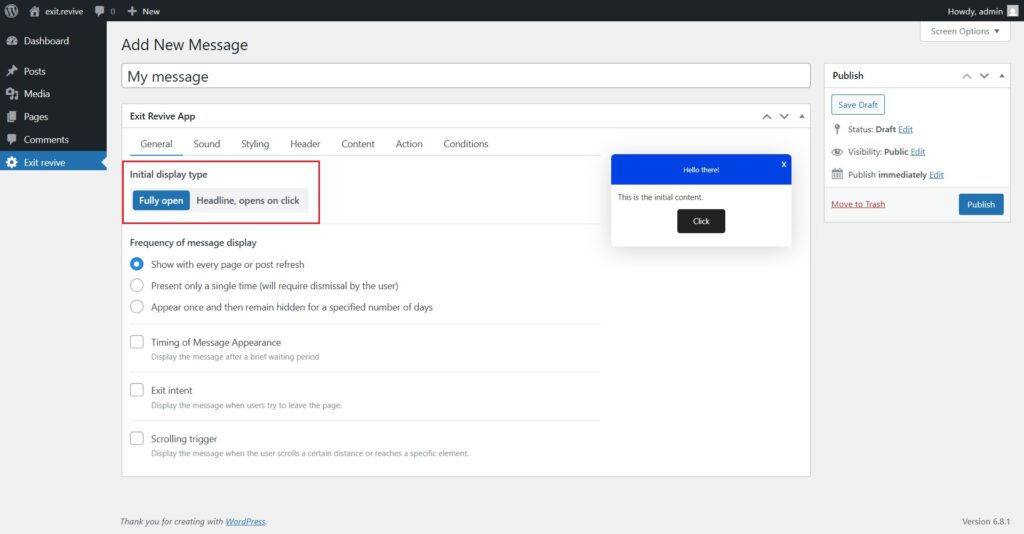
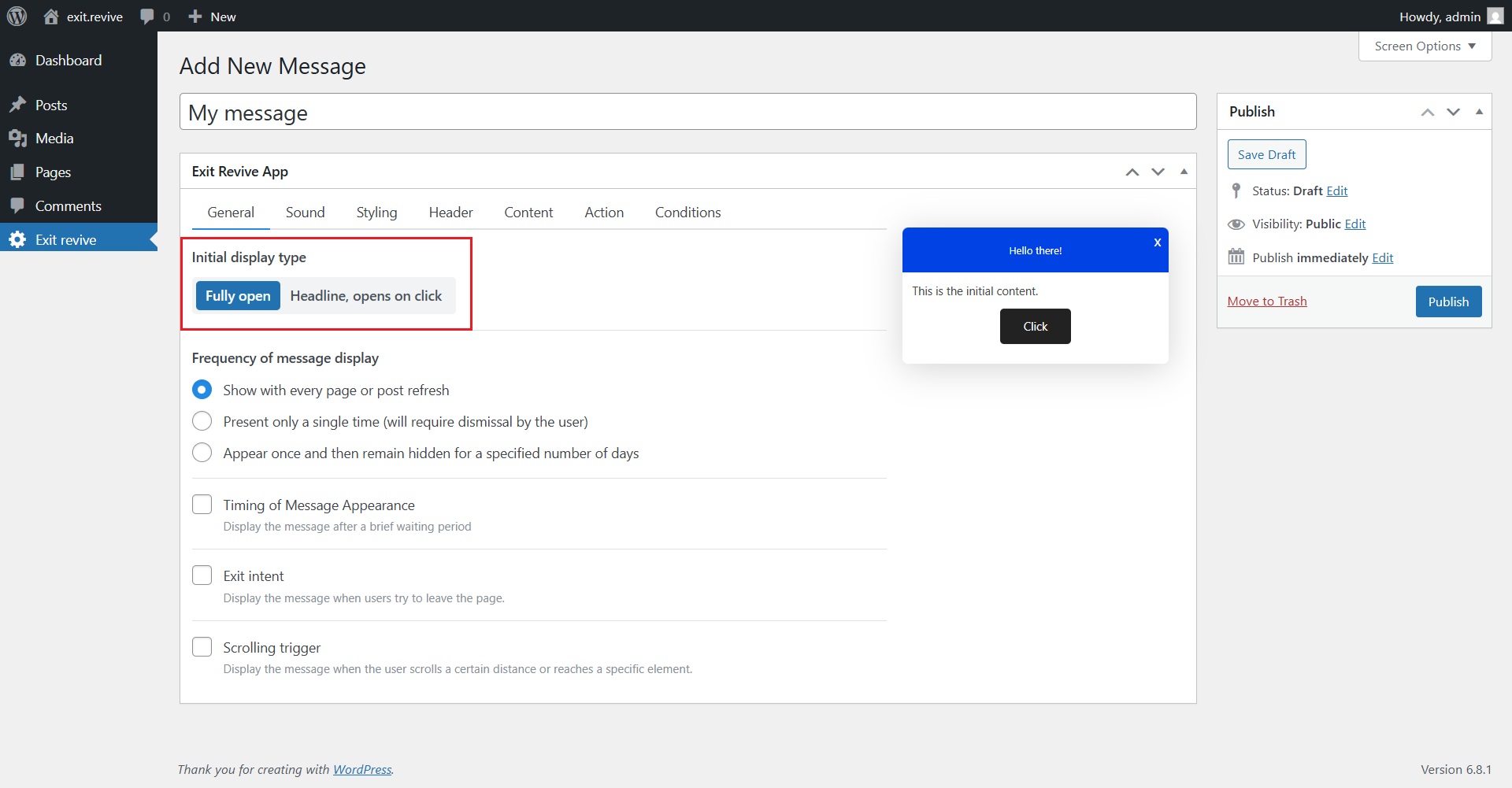
Add a name for your message at the top (e.g., “My message”) for internal reference and Choose Initial Display Type. Under “Initial display type”, select either:
- Fully open – message appears expanded automatically
- Headline, opens on click – only a headline shows until clicked
-
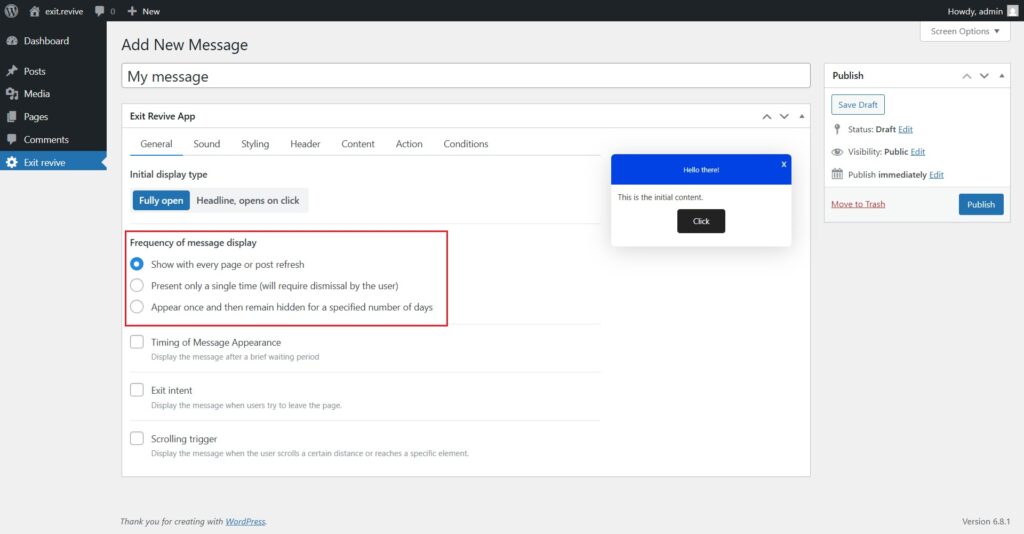
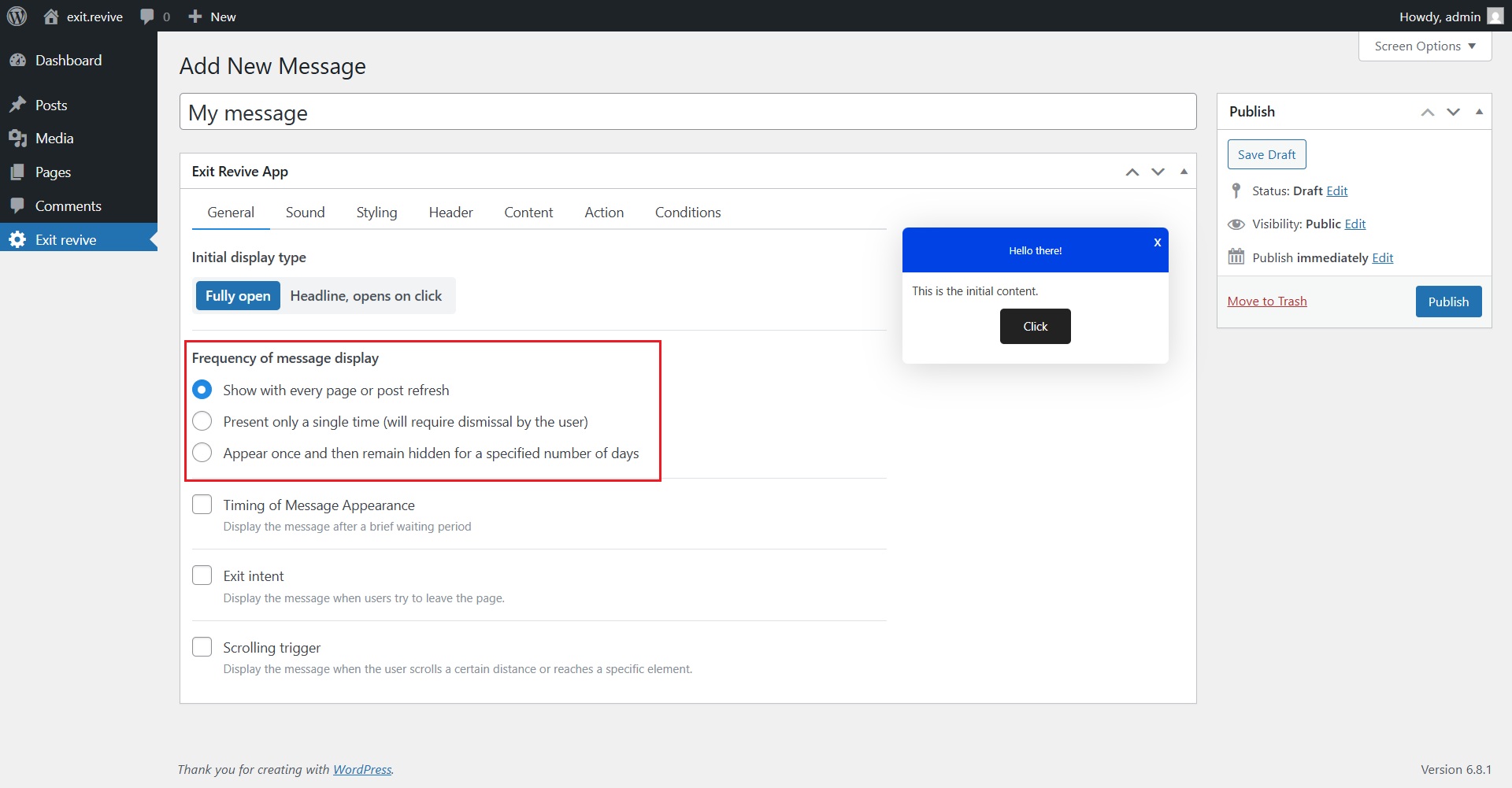
Select Frequency of Message Display
Choose how often the message should appear:- Every page refresh
- Only once
- Once, then hidden for X days
-
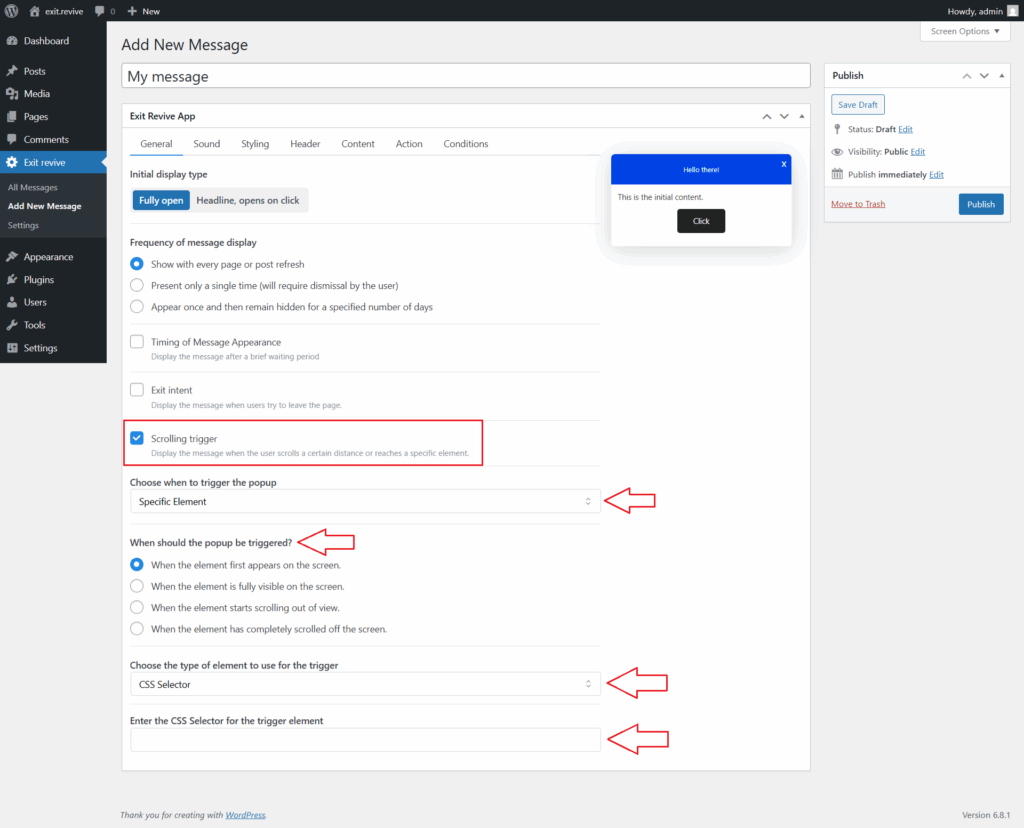
Enable Scrolling Trigger
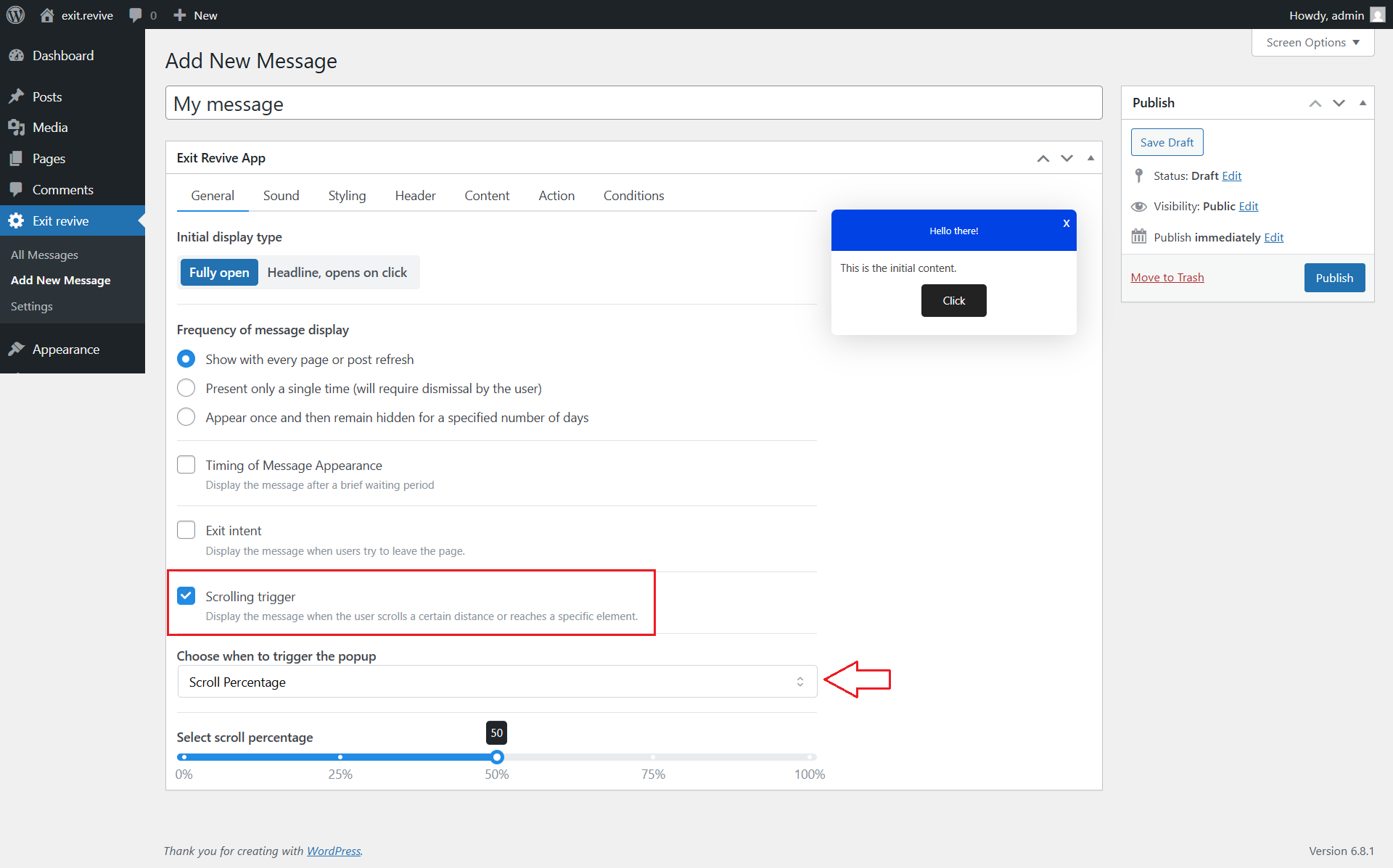
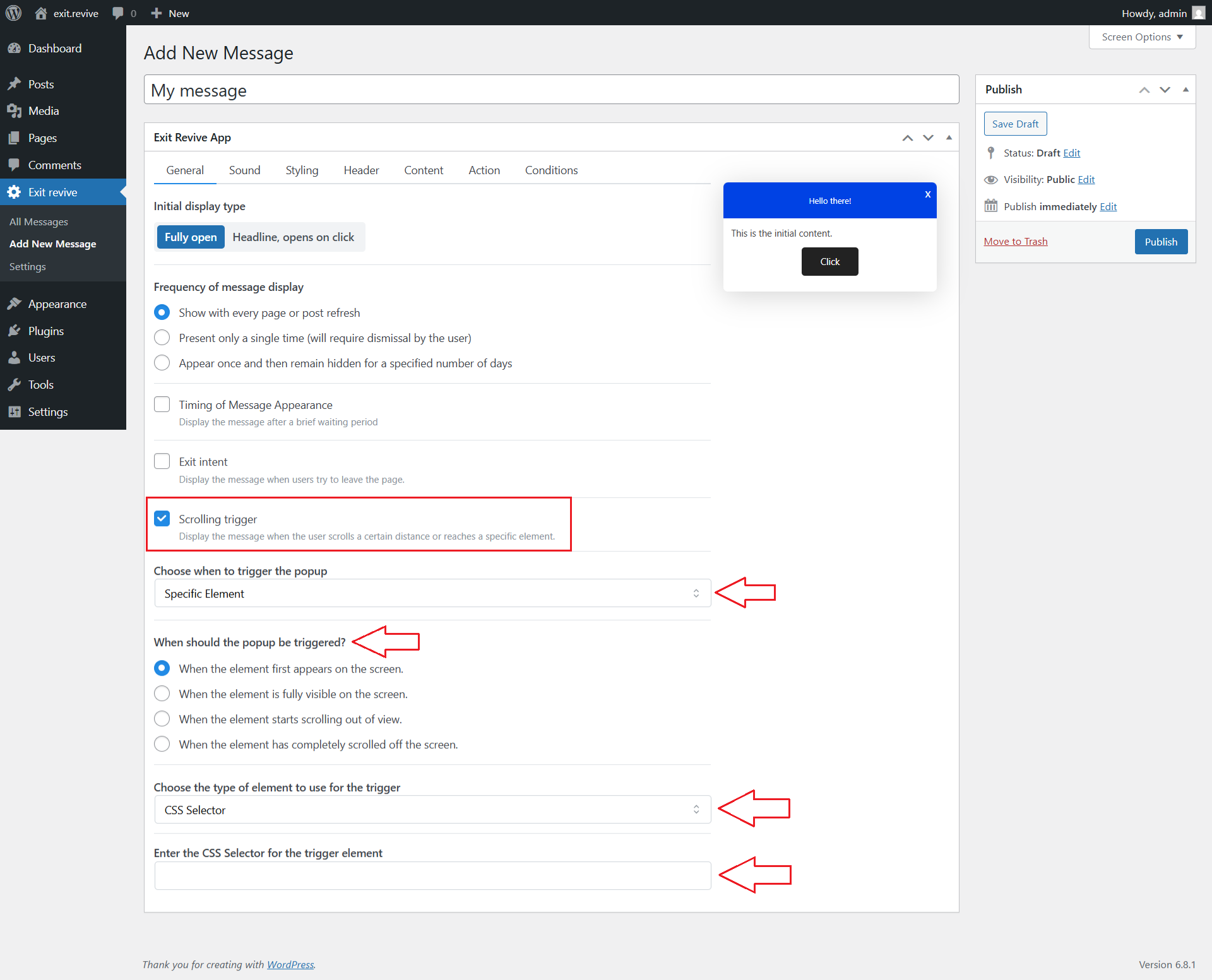
Scroll down to “Scrolling trigger” and check the box to enable it. This activates the scroll-based behavior.Here you can set scroll condition:
- Scroll percentage – Here you can Adjust Scroll Percentage. Use the slider below to choose when the message should appear based on scroll depth.
For example, 50% means the popup shows when the user scrolls halfway down the page.
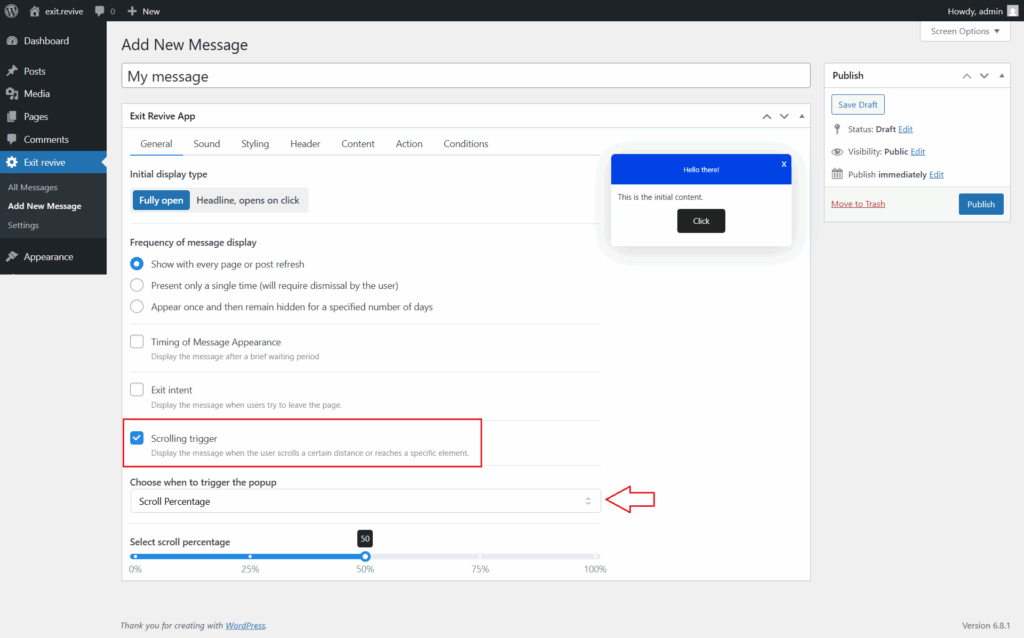
- Specific element – Here you can choose when to trigger the popup. Select the condition that determines when the popup will appear based on the element’s visibility and then choose the type of element to use for the trigger.
- Scroll percentage – Here you can Adjust Scroll Percentage. Use the slider below to choose when the message should appear based on scroll depth.
-
Customize Message Content
Use the tabs (Sound, Styling, Header, Content, etc.) to personalize your message. -
Click “Publish” on the right to make your scroll timed message live.
That’s it! Now you can display messages right when your visitors are most engaged.