This guide shows you how to display targeted popup messages using the Exit Revive plugin based on the contents of a user’s Easy Digital Downloads (EDD) cart. By setting cart-based conditions, you can trigger messages at the right moment — encouraging users to complete their purchase, apply discounts, or add more items to their cart.
Follow these steps to make a popup message display a message based on EDD cart content:
-
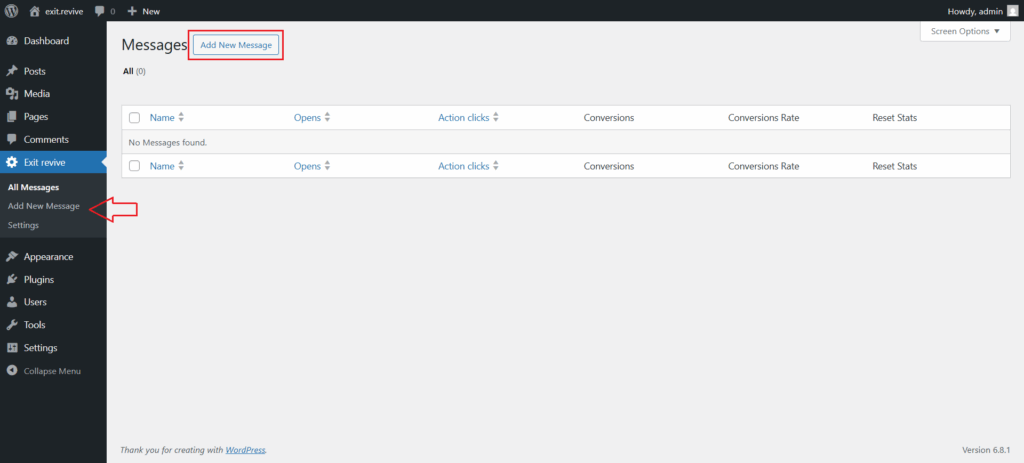
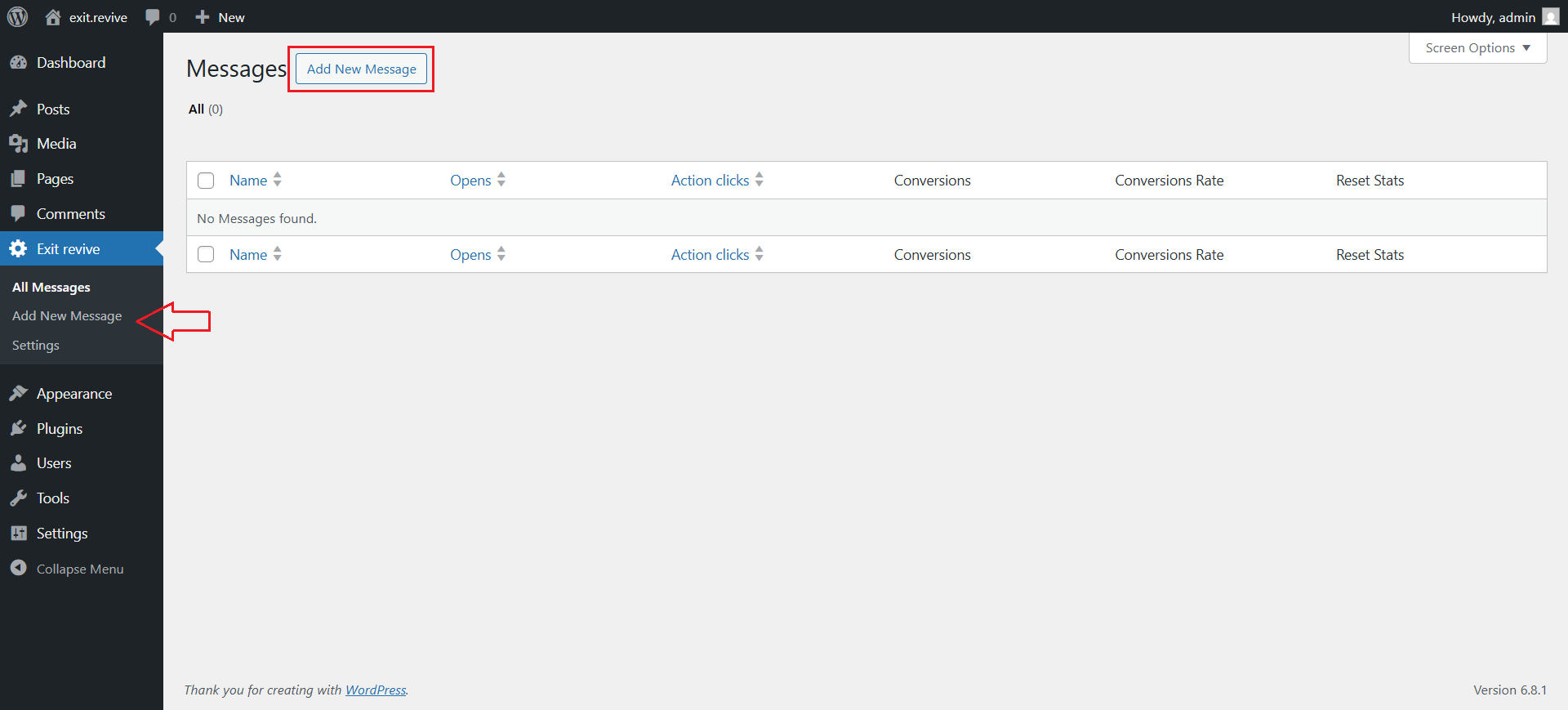
Head over to your WordPress dashboard > Exit Revive > Add new message
-
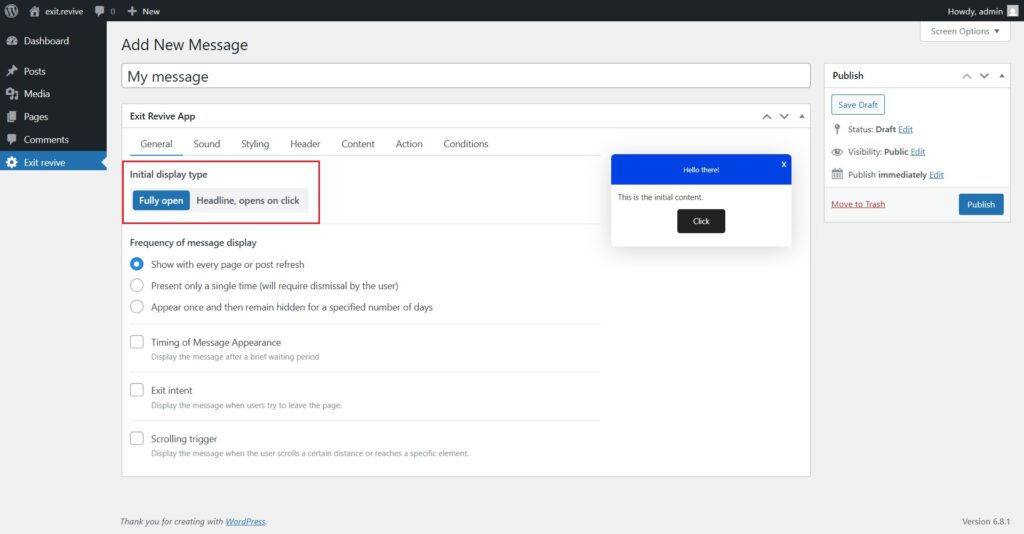
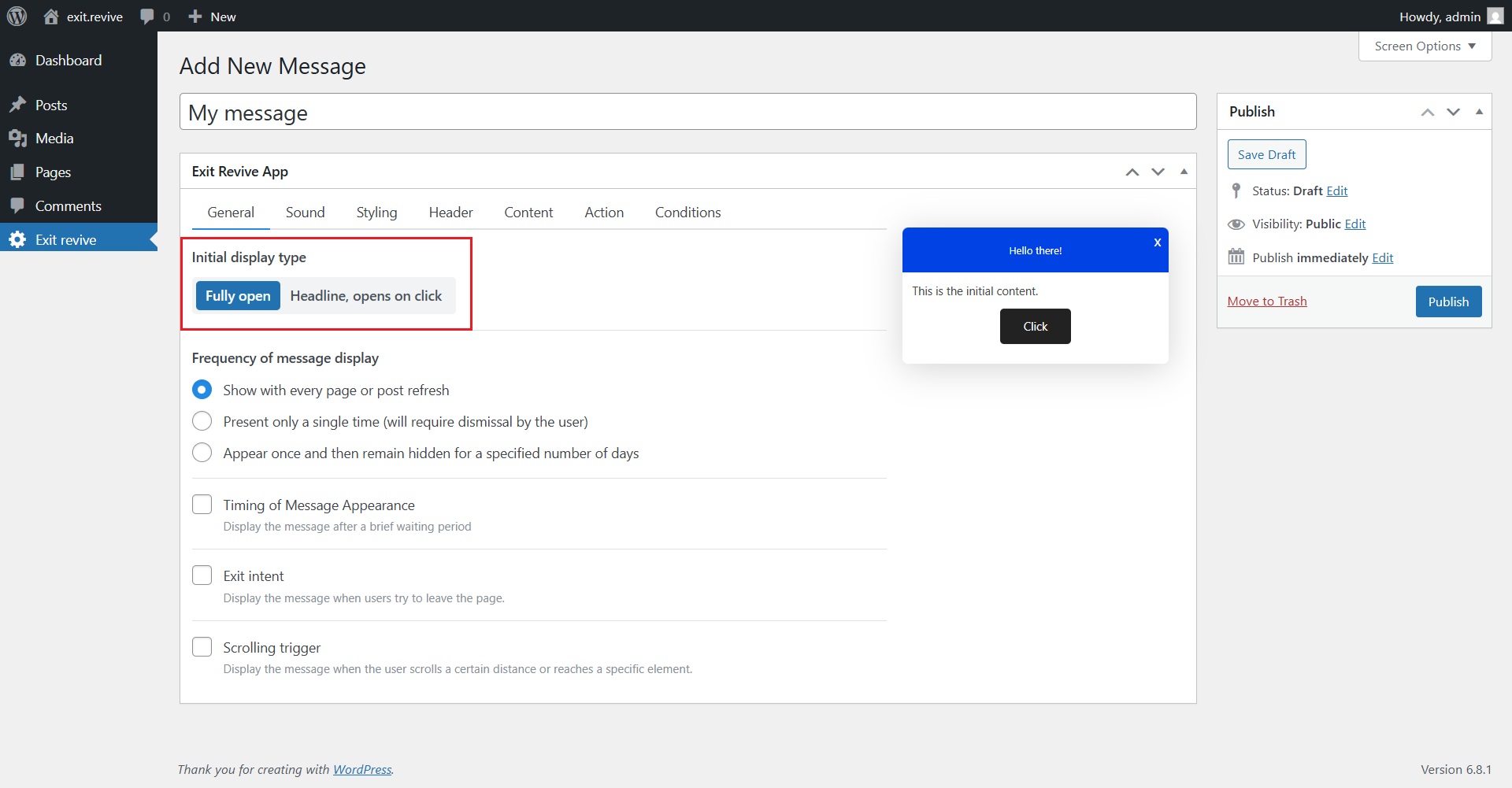
Add a name for your message at the top (e.g., “My message”) for internal reference and Choose Initial Display Type. Under “Initial display type”, select either:
- Fully open – message appears expanded automatically
- Headline, opens on click – only a headline shows until clicked
-
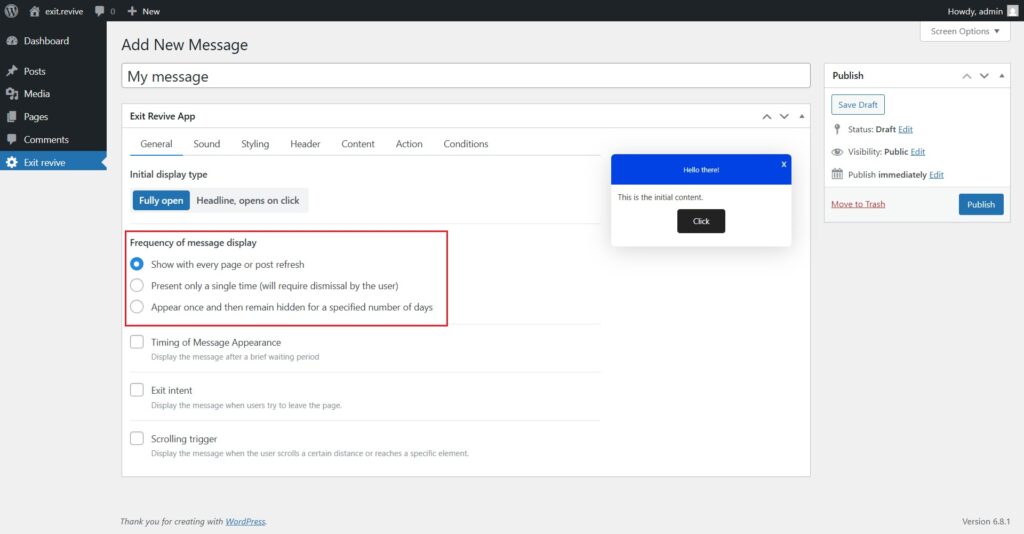
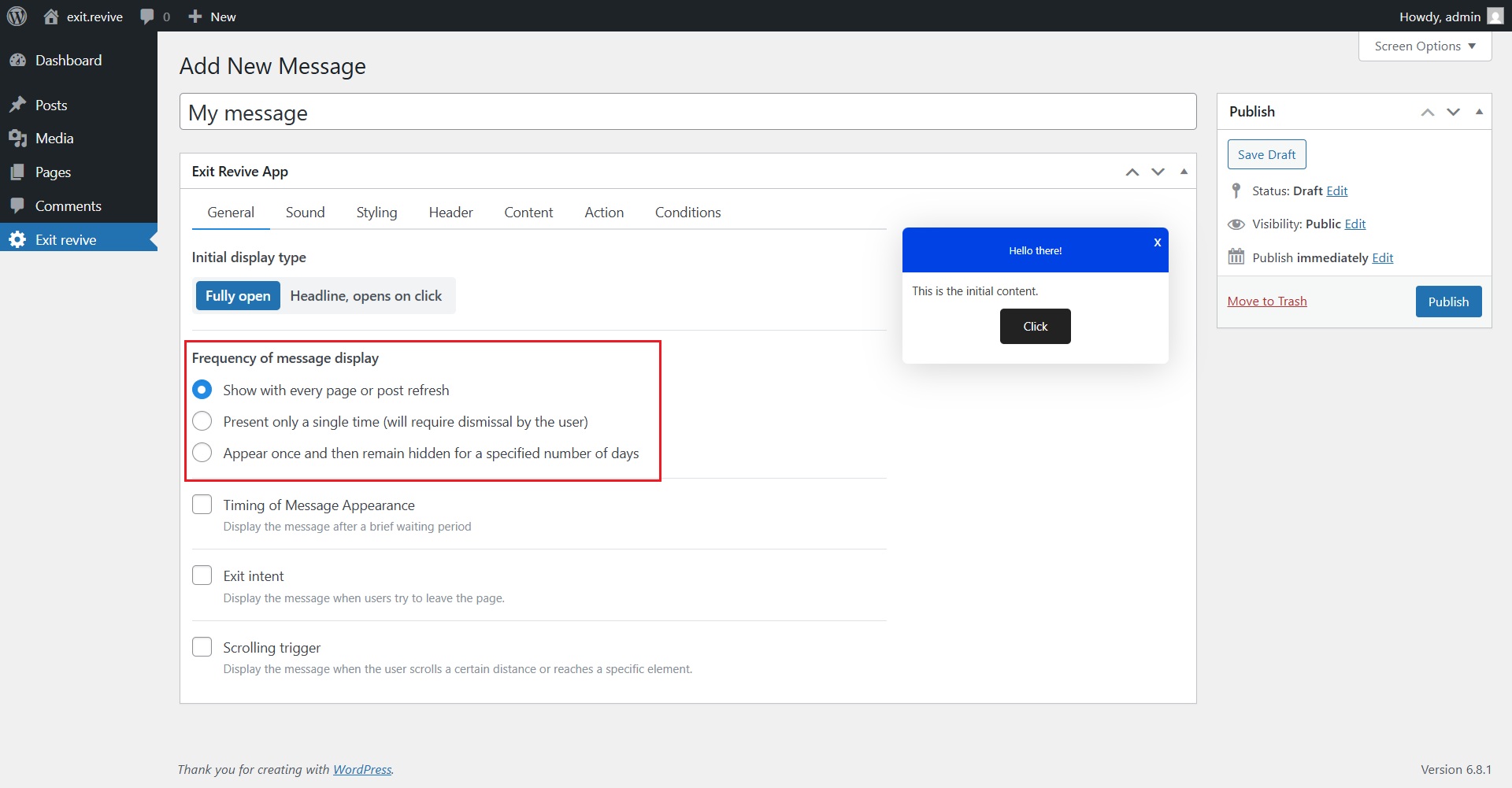
Select Frequency of Message Display
Choose how often the message should appear:
- Every page refresh
- Only once
- Once, then hidden for X days
-
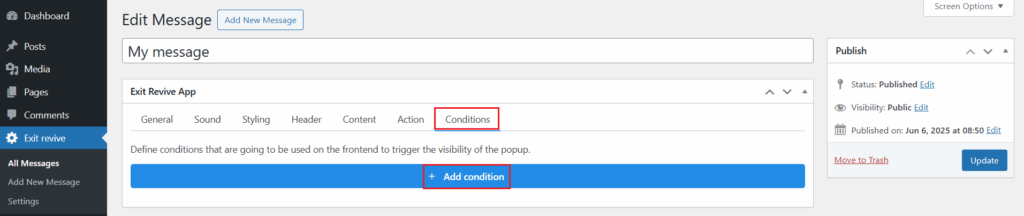
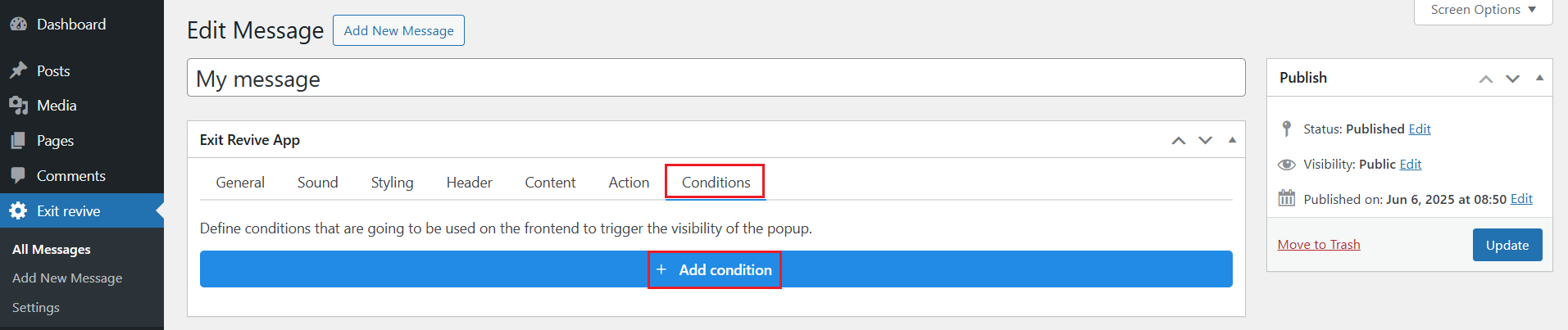
After setting up your message, go to the Conditions tab and click on Add condition.
-
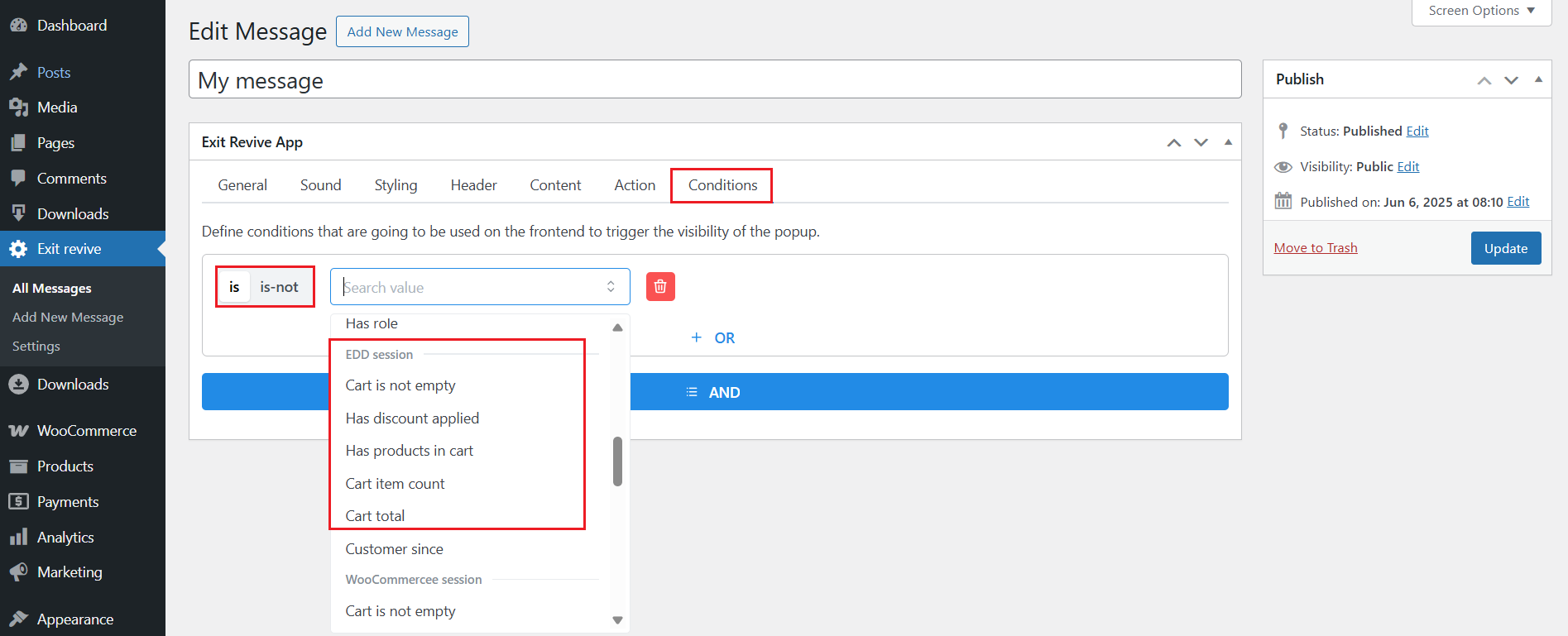
Here you can choose to show the message based on what’s currently in the user’s EDD cart.
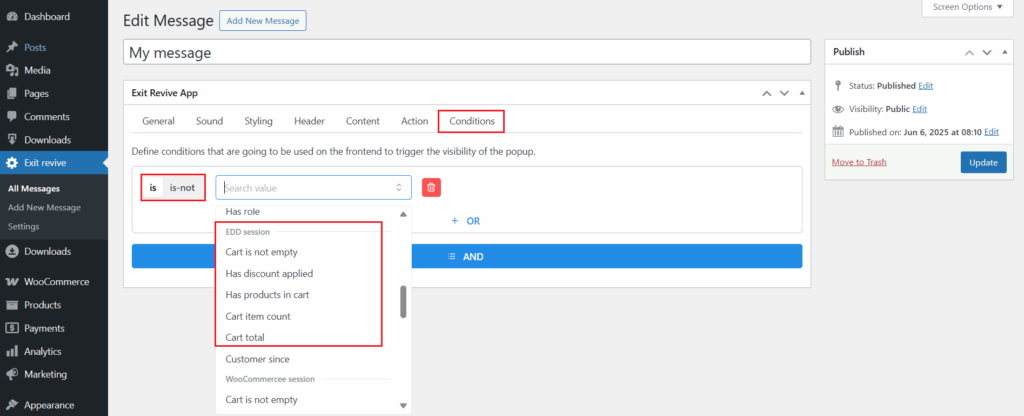
From the “Search value” dropdown, scroll down to the section labeled EDD session.
Select one of the available cart-related options depending on your goal:
- Cart is not empty – Show the message only when the cart has items.
- Has discount applied – Target users who are using a coupon or promotion.
- Has products in cart – Show messages only when specific products are present.
- Cart item count – Trigger messages based on the number of items in the cart.
- Cart total – Show the message based on cart value (e.g., above $50).
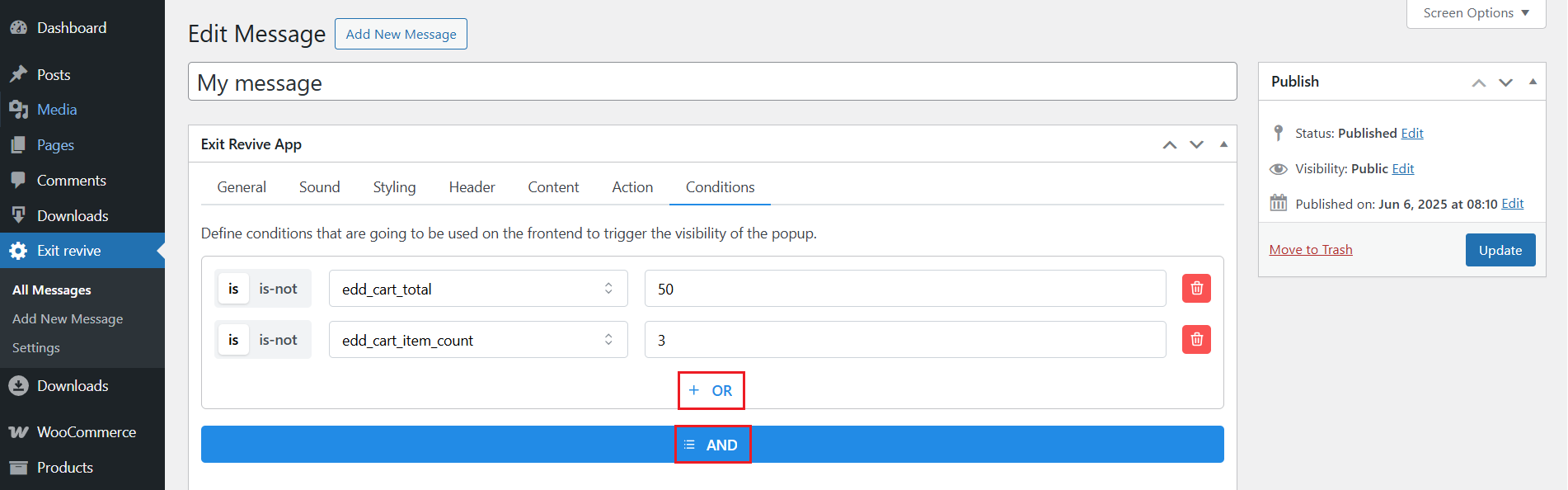
Once you’ve selected a condition, define the logic using “is” or “is-not” and fill in any required values.
-
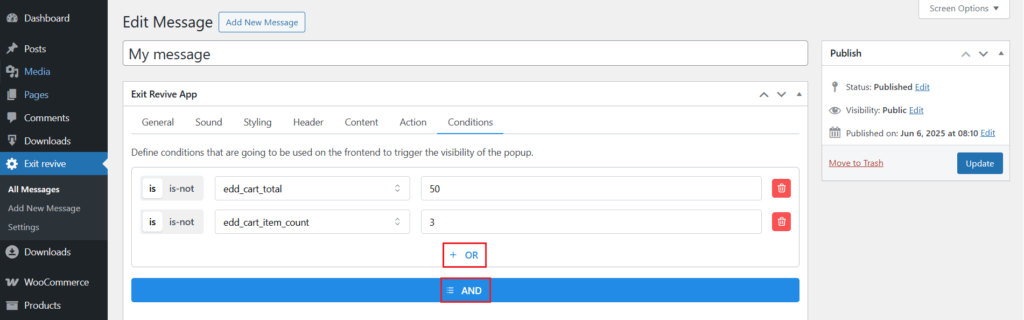
You can also set multiple conditions for your message using logical AND / OR rules:
- AND means the popup will appear only if all the listed conditions are true.
- OR means the popup will appear if any of the listed conditions are true.
-
Once you’ve set the condition, click Update or Publish on the right side.
Your Exit Revive message will now only appear to users whose EDD cart meets your defined conditions — helping you deliver more relevant, high-converting popups.