
Adding sound effects to your message popups can help grab user attention and improve engagement — especially for time-sensitive or promotional content. The Exit Revive plugin offers simple yet flexible audio controls that allow you to enhance your message triggers with sound.
Sound Options Explained
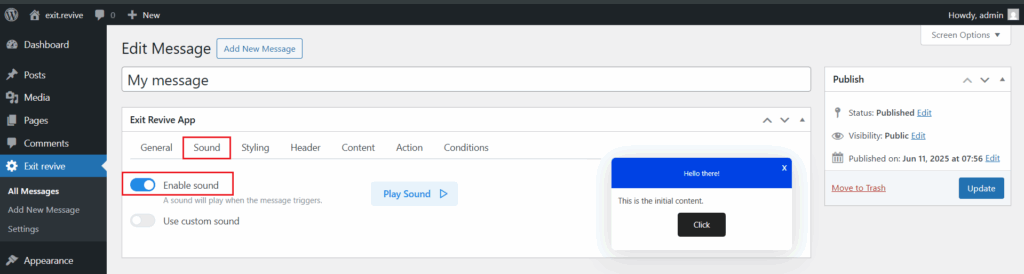
In the Sound tab, you’ll find the following settings:
-
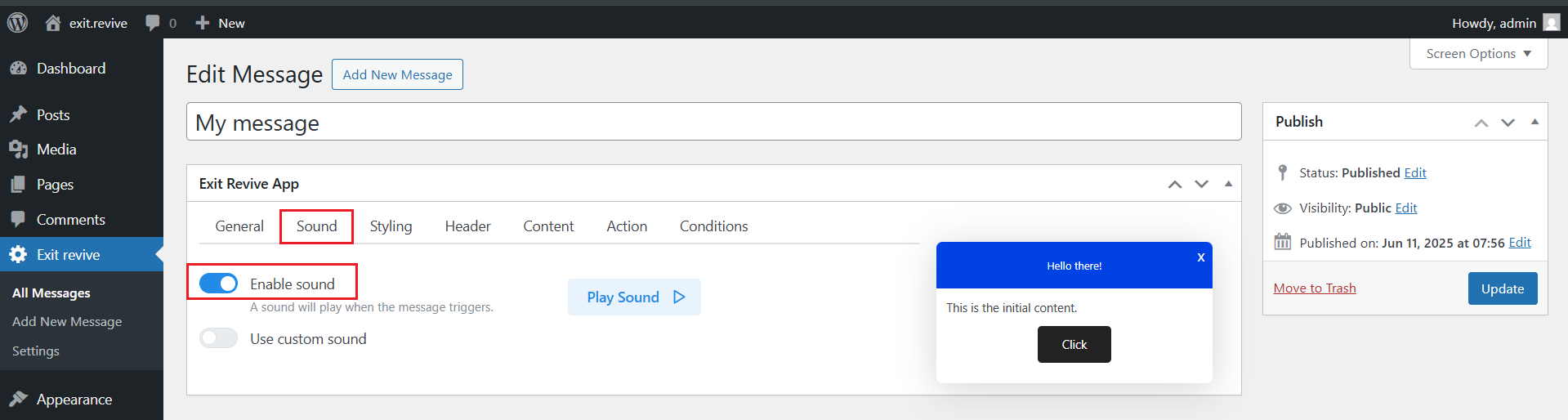
Enable sound
- Toggle this option on to play a sound whenever the message is displayed.
- Useful for drawing attention to important or urgent messages.
-
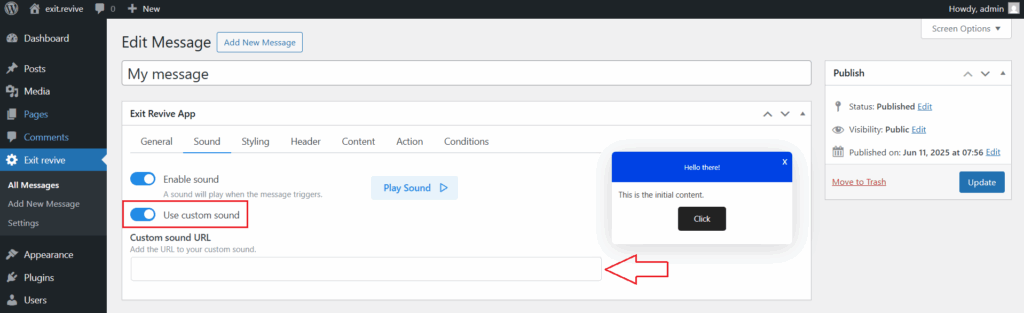
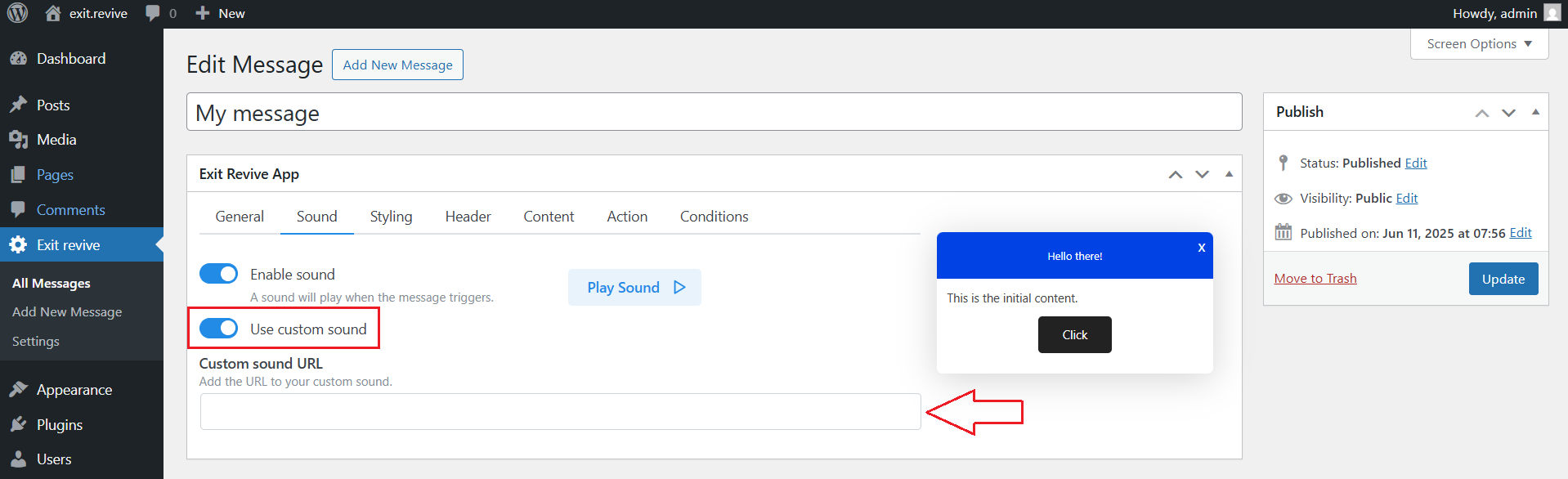
Use custom sound
- Enable this option to use your own audio file instead of the default sound.
- Once enabled, you’ll be prompted to enter a Custom sound URL pointing to your hosted audio file (e.g.,
.mp3).
-
Custom sound URL
- Paste the direct link to your audio file here. This file should uploaded in your media.
- Example:
https://yoursite.com/wp-content/uploads/alert.mp3
-
Play Sound (Preview Button)
- Use this button to instantly preview the sound that will be triggered.
- Great for testing volume and clarity.
These settings allow you to personalize your popups even further by incorporating branding elements or attention-grabbing alerts.